Happy trying guys... ! :)
Showing posts with label Adsense. Show all posts
Showing posts with label Adsense. Show all posts
Thursday, April 28, 2016
News! Great and smart ads from google
Happy trying guys... ! :)
Wednesday, September 18, 2013
Google Launches Detailed Policy Violation Feature In Adsense !

What is the new Policy Violations feature?
Getting banned from adsense without even knowing the cause is the worst nightmare for every bloggers and webmasters.This has resulted many people to dislike adsense because everyone makes mistake and it is their right to know what was the cause of getting suspended or banned.Recently google has introduced a new feature called policy violations that actually reports you the cause of the violation and helps you recover from the violation.
This is what Google said:
This is what Google said:

Going forward, if our system detects a policy violation, you’ll receive both an email and an account notification with a link to view more details. Under the Policy violations section on the home tab, you can quickly access important information including details on each violation, the issue ID and an example of the violation on your site. The page will also include details on the action you need to take to resolve the violation.
How To Use The Policy Violation Feature?
- Log in to your adsense account.
- Click on the policy violation tab in the left pane.

- If you have any policy violations you will see the alert there else you will see a similar message"You have no policy violations on record. Thank you!".

Screenshots
You will see a similar screenshot when you have an alert on your adsense.
You will see a similar screenshot on the policy violation page when you have an alert.

When you have no alert you will see a similar screenshot as below.

Further reading: Top 15 Adsense ad placement location for blogger
Guide to adsense ad sizes and placements
Must have gadget for adsense publishers
Leave a comment on how this update helps you.Tell us more about the violation feature in the comments if you have experienced an alert.
Wednesday, August 21, 2013
How Can You Contact Adsense Support Directly ?
Adsense is a great way to make money with your website.But Adsense has very strict policies.Many people feels afraid to experiment with the ads for optimization due to the strict program policies.So they wish to contact Adsense directly than completely believing on online forums and sites.Adsense has a lot of support options for their publishers including Help Center,Community,Troubleshooters and Email Support.
Every publishers can access Help Center,Community and Troubleshooters.

What about Email Support?Is that meant for you?
Adsense Email support is not available for all publishers.They have some requirements for you to be eligible for the Email Support.
What is the requirement for Adsense Email Support?
Adsense Email Support is available only for publishers earning more than 25$(or equivalent) per week on a consistent basis.
What criteria is used by Google to provide Email Support for Adsense publishers?
This is what google what google says for publishers to be eligible for email support
"We look at earnings over the past 5 weeks and focus on longer-term earning trends when assigning support level. This helps prevent publishers from moving between support options too frequently. Publishers who have fluctuations in their earnings that take them above and below US$25 per week may not qualify for higher levels of support until earnings are consistently above US$25."
Adsense Premium Email support is available for Premium Adsense Publishers.
Related Links
List of Adsense Support
The Most Effective AdSense Tips for Newbies & Low Earners
Top 15 Adsense Ad Placement Locations!
Guide to Google Adsense Ad Size And Ad Placements !!
Optimize your Adsense for best earnings! (Latest Tips)
Make most money out of your Adsense account! [Best methods like flipping market is explained]
Every publishers can access Help Center,Community and Troubleshooters.

What about Email Support?Is that meant for you?
Adsense Email support is not available for all publishers.They have some requirements for you to be eligible for the Email Support.
What is the requirement for Adsense Email Support?
Adsense Email Support is available only for publishers earning more than 25$(or equivalent) per week on a consistent basis.
What criteria is used by Google to provide Email Support for Adsense publishers?
This is what google what google says for publishers to be eligible for email support
"We look at earnings over the past 5 weeks and focus on longer-term earning trends when assigning support level. This helps prevent publishers from moving between support options too frequently. Publishers who have fluctuations in their earnings that take them above and below US$25 per week may not qualify for higher levels of support until earnings are consistently above US$25."
How to contact Adsense Email Support?
- Sign in to your Adsense account.
- Go to Adsense help pages. e.g. Adsense Support
- Click on the "CONTACT US" button on the top right.

- You will see the Adsense Email Support option if you are eligible !
- You will the below screen shot if you are not eligible for the program.

Adsense Email Support not available


Related Links
List of Adsense Support
The Most Effective AdSense Tips for Newbies & Low Earners
Top 15 Adsense Ad Placement Locations!
Guide to Google Adsense Ad Size And Ad Placements !!
Optimize your Adsense for best earnings! (Latest Tips)
Make most money out of your Adsense account! [Best methods like flipping market is explained]
Sunday, August 18, 2013
The Most Effective AdSense Tips for Newbies & Low Earners
Adsense is a great way to make money online.But a lot of people fail to make at least 1$ a day.One of the main reason for this is poor traffic.Imagine if you have 100 people a day on your site and only 2-3 click on the ads,then you are not gonna make anything from adsense.So you need more traffic.

Why is it recommended to join adsense once you have high visitors?
Many people create a site,write some post(for the sake of writing)and then apply for adsense.Once they got approved they start to experiment with different ad placements,colors.,etc. so as to make more money.Thus creating content becomes the secondary task and you will start loosing your traffic.Gradually you get depressed with lower earnings.You will then go for other ad networks without creating good unique content.
Why is my CPC,CTR,etc. too low?
The main reasons for this is because you don't have enough traffic.The traffic source and the country will also be a factor of your CPC.
How can I increase my earnings?
Check out my previous posts on adsense optimization if you haven't already.
Why is it recommended to join adsense once you have high visitors?
Many people create a site,write some post(for the sake of writing)and then apply for adsense.Once they got approved they start to experiment with different ad placements,colors.,etc. so as to make more money.Thus creating content becomes the secondary task and you will start loosing your traffic.Gradually you get depressed with lower earnings.You will then go for other ad networks without creating good unique content.
Why is my CPC,CTR,etc. too low?
The main reasons for this is because you don't have enough traffic.The traffic source and the country will also be a factor of your CPC.
How can I increase my earnings?
- Keep on creating good&unique content
- Target audience from high paying countries like USA
- Practice methods to increase your organic traffic (search traffic)
- Get more and more backlinks which helps to increase your Google Page Rank
- Create custom channels and track your ad progress.Then remove the low performing ad units.
- Make your custom channels targetable.
- Block irrelevant ad categories in your adsense.
- Use different adsense services like adsense for feeds,adsense for search,etc.
Check out my previous posts on adsense optimization if you haven't already.
- Top 15 Ad Placement Locations for blogger
- Optimize Adsense for better earnings
- Make most money out of your Adsense
Saturday, August 17, 2013
15 Best Adsense Ad Placement Locations!
Adsense is a great way to make money from a website.Many people make thousands of dollars from their blog using adsense while others earn a very few amount.There are many reasons for this different earnings like CPC,unique content,CTR,etc.One of the most important reasons that affects adsense earnings is ad placement.Many people fail to place the ads properly.This can be due to the reason that they don't know where to place the ads.This article will discuss about the most common places on our blog for ad placement.
1 ) In The Sidebar
2 ) Between Posts
3 ) Under The Header
4 ) Above The Blog Post
5 ) Under The Post Title (Visible on all pages)
7 ) Above The Post Title (Visible on all pages)
9 ) In The Post's Footer
10 ) In The Post's Body (Visible on all pages)
12 ) Between Post And Comments
13 ) In The Blog's Footer
15 ) Add Two Ads Side By Side
1 ) In The Sidebar
This is the easiest place to add adsense code.
How to implement? Go to the layout page in blogger,click on add a widget and add an HTML/Javascript widget the adsense code in it or directly add a Adsense widget.
2 ) Between Posts
To add Adsense between post simply go to the blogger dashboard and navigate to layout.Click Edit Link below the blog post section and put a check mark on 'Show Ads Between Posts' option.
3 ) Under The Header
First of all convert your adsense code here: Adsense Converter
Then go to your blogger dashboard,navigate to template and click on 'Edit HTML'.
Find <div id='header-wrapper'>
Paste the converted code right after it.
4 ) Above The Blog Post
Add an adsense ad in the sidebar (explained above) and then drag the ad right above the blog post.
If It Doesn't work: Convert your ad code and search for <div id='main-wrapper'> in your template.
Paste the converted code right after it.
Recommended size:728*90 , 468*60
5 ) Under The Post Title (Visible on all pages)
This is a great ad placement location to increase your CTR!
How to add? Convert your ad code and go to your blog template.Find <div class='post-header-line-1'/>
Paste the converted code right after it.
6 ) Under The Post Title (Visible only on post pages)
This is a great ad placement location to increase your CTR!
How to add? Convert your ad code and go to your blog template.Find <div class='post-header-line-1'/>
Paste the converted code right after it following this format.
<b:if cond='data:blog.pageType == "item"'>
YOUR AD CODE HERE
</b:if>
7 ) Above The Post Title (Visible on all pages)

Convert your ad code and go to your blog template.Find <a expr:name='data:post.id'/>
Paste the converted code below it.
NOTE:If there are two or more of the same code paste the code after the right one.
8 ) Above The Post Title (Visible only on post pages)
Convert your ad code and go to your blog template.Find <a expr:name='data:post.id'/>
Paste the converted code below it in the following format:
<b:if cond='data:blog.pageType == "item"'>
YOUR AD CODE HERE
</b:if>
9 ) In The Post's Footer
Convert your ad code and then go to your template.
Find <p class='post-footer-line post-footer-line-3'/>
Paste the converted code right after the above code.
10 ) In The Post's Body (Visible on all pages)
Convert your ad code and then go to your template.Search for <div class='post-body entry-content'>
Note:If you can't find the above code then search for <div class='post-body'>
Paste the converted code following this example:
<div style='float:right'>
YOUR AD CODE HERE
</div>
To align the ad to the left simply change right to left.
11 ) In The Post's Body (Visible only on post pages)
Convert your ad code and then go to your template.Search for <div class='post-body entry-content'>
Note:If you can't find the above code then search for <div class='post-body'>
Paste the converted code following this example:
<b:if cond='data:blog.pageType == "item"'>
<div style='float:right'>
YOUR AD CODE HERE
</div>
</b:if>
To align the ad to the left simply change right to left.
12 ) Between Post And Comments
Convert your ad code and then go to your blog template.
Find </b:includable>
<b:includable id='commentDeleteIcon' var='comment'>Paste the converted code in the following manner.
<b:if cond='data:blog.pageType == "item"'>
YOUR AD CODE HERE
</b:if>
13 ) In The Blog's Footer
Convert your ad code and then go to your blog template.Find <div id='footer-wrapper'>
Paste the converted code right after it.
14 ) Anywhere In The Post
If you want to add an ad anywhere onto you post simply copy the ad code(Do not convert).Switch to HTML view in your post editor and paste the ad code in your desired location.(Make sure all the tags are closed properly)
15 ) Add Two Ads Side By Side

If you want to add two ads side by side then follow the below syntax.
<table width="520" cellspacing="0" cellpadding="0" border="0"> <tr> <td width="250" style="padding: 5px;" align="center"> ADSENSE CODE 1 </td> <td width="250" style="padding: 5px;" align="left"> ADSENSE CODE 2 </td> </tr> </table> |
Paste this code wherever you want the ad to appear.
NOTE:You may need to convert your ad code if you are adding this code directly into the template.
FAQ
I can't find the codes!What should I do?
Check the 'Expand Widget Templates' checkbox.Try searching without the trailing slash /
Make sure that there is no space before and after the code in the search box.
Why should I convert the code?
You cannot add HTML directly into Xml template.So you need to encode them in order to make it function.
Can I put all the ad code?
No,you are not allowed to!You can only place 3 ad units in a page.(Excluding link unit ads)
HOPE THIS HELPS!
SUBSCRIBE US IF YOU FIND THIS POST HELPFUL
What do you think?Leave a comment!
Tuesday, August 13, 2013
Earn More With Text Link Ads! (Link Ad Companies Displayed On Google)
Google Adsense is a great way to make money online with a site.But getting approved from google is difficult.There are many Adsense alternatives that pays good.Have you heard about link ads?Link ads are links that points to the advertiser's websites from the relevant keyword on your blog.You can use these link ad services to earn even more from your site along with other ad services like adsense.
Some Link Ad Services
- VigLink - I have heard about VigLink from Google's Monetization with other services page.They pay when users click and buy. There is no cost to try,and you can get up and running in minutes.
- Skimlinks - I came to know about this site also from the Google's page.They also pay like VigLink does.Joining is free!
Skimlink Ad Sample - MediaWhiz SEO - This company was earlier known as Text Link Ads.This site is different from the rest because this site pays a fixed charge for displaying links on your content.The links are charged on monthly basis.Getting approved is difficult.

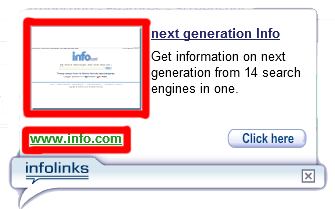
- Infolinks - This is a common service that most bloggers use.They don't have any strict requirments for you to join.Joining is completely free.They offer variety of ads to enhance your earnings.They pay for each click on the links.
Infolink ad displayed on hovering the ad link.


Saturday, August 3, 2013
Guide to Adsense Ad Size And Ad Placements !!
Creating a site is very simple.Getting approved by Google AdSense is hard.Earning from your site is very difficult without proper arrangements of ads.This post will help you understand more about ad sizes and best ad placement locations.
The full list of Ads and Ad Placement table can be download for free from the below link!
| Ad size | Description | Text ads | Display ads | Mobile text and display ads* |
|---|---|---|---|---|
| 300x250 | Also known as a "medium rectangle". Tends to have more ad inventory available from advertisers, which can increase earnings when both text and image ads are enabled. Performs well when embedded within text content or at the end of articles. | ✓ | ✓ | ✓ |
| 336x280 † | Also known as a "large rectangle". Tends to have more ad inventory available from advertisers, which can increase earnings when both text and image ads are enabled. Performs well when embedded within text content or at the end of articles. | ✓ | ✓ | |
| 728x90 | Also known as a "leaderboard". Tends to have more ad inventory available from advertisers, which can increase earnings when both text and image ads are enabled. Performs well if placed above main content, and on forum sites. | ✓ | ✓ | |
| 160x600 | Also known as a "wide skyscraper". Tends to have more ad inventory available from advertisers, which can increase earnings when both text and image ads are enabled. Best if used along sidebars of webpages. | ✓ | ✓ |
The full list of Ads and Ad Placement table can be download for free from the below link!
Courtesy:Google
Saturday, July 27, 2013
View your AdSense earnings in local time!
We know that access to the most up-to-date data on your account is important in understanding how it’s performing on a daily basis. Up to now, Adsense reported your daily earnings based on Pacific Standard Time (PST). Over the next couple of weeks however, you’ll be able to view your daily earnings based on your local time zone, giving you the latest information.
How to set up Adsense earnings in local time feature?
How to set up Adsense earnings in local time feature?
- Go to your Account Settings Page.
- Scroll down to the Account Information section.
- Click edit next to the Timezone option.
- Choose your time preference from the Timezone option.

- Click save.

For more information visit here.
Saturday, July 6, 2013
A must have gadget for Adsense Publishers (It's 100% free)
Are you an Adsense publisher?Do you keep logging on to your account every few minutes to check improvement?If so,read this post carefully.

Google Publisher Toolbar is a browser extension for chrome that allows you to track your earnings without logging to your account every time.Instead ,you only need to log in once and give the permission to display the earnings.With this extension you can access the real time information and the ads served on your site.
 When you access your website you can see the ad details like the ad provider, ad size and ad link by hovering on to the Adsense ad.
To download Google Publisher Toolbar click here.
How to view Adsense earnings in local time?
Subscribe to our blog for latest PC tricks!
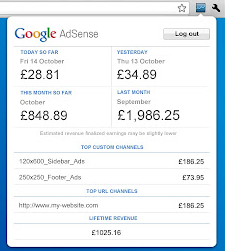
Google Publisher Toolbar is a browser extension for chrome that allows you to track your earnings without logging to your account every time.Instead ,you only need to log in once and give the permission to display the earnings.With this extension you can access the real time information and the ads served on your site.

To download Google Publisher Toolbar click here.
How to view Adsense earnings in local time?
Subscribe to our blog for latest PC tricks!
Subscribe to:
Posts (Atom)


