Showing posts with label Pc tutorial. Show all posts

Friday, January 24, 2014

How To Increase Browser Viewing Area In Chrome ?

Browsing the internet is fun.It is more fun when you can view wide range of content in a single large screen.Using toolbars will decrease the viewing area.Going full screen will increase the viewing area but not all likes it.Large viewing area helps to deliver more text on each lines.Moreover it is beneficial in watching videos.Last but not least it looks good.Check out these different ways of increasing the viewing area in chrome.

Reduce Scroll Bar Size

Drops and drops of water makes an ocean.Therefore lets start from the small.The default scroll bar looks bad.So don't we change it with an eye pleasing ultra thin scroll bar.To use the thin scrollbar simply download  Thin Scroll Bar from the chrome store.Scroll bar diet is another such extension that you can give a try.
Thin Scroll Bar

Go Full Screen

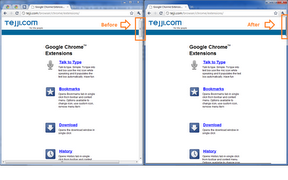
Going full screen delivers huge viewing area.This is especially useful when you are reading online.This also eliminates the toolbars from the viewing area.To go full screen simply press F11.Press F11 again to exit full screen mode.This gif shows how big the viewing area will be.


Use AdBlockers

Ads cover up much of the space on websites.So blocking the ads will free up these spaces.Using adblocker extensions such as Adblock will help you increase your viewing area.

Sunday, January 19, 2014

How To Call/Text From iPod/iPad/iPhone Absolutely For Free? (International) {No Jailbreak Required!}

Make free calls in ipod touchTalking with friends and family is fun!There are several applications that allow you to call your friends and family for free.One of the most popular is Microsoft Skype.These type of applications only allow you to have free calls within its members(e.g :skype to skype).That means if you want to call someone's mobile then its not free.There are several applications that allows you to make cheap calls from your ipod/ipad or iphone.But if you don't want it to be cheaper too,then we will make it free for you.This trick will help you make absolute free calls or free text messages from your ipod/ipad or iphone.Moreover this can also help you tranform your ipod touch into a phone.This trick works in over 200 countries.You don't need the recipient to use the app for this trick to work!(Just like your phone)

What You Need?

  • An ios device
  • An internet connection
  • TextMe (free app)
  • Any ios VPN service app

Steps To Make Free Phone Calls From iPod/iPad/iPhone

  1. Download TextMe app for free from the appstore.
  2. Launch the application and create a new account.
  3. You will now be rewarded with 10 credits.Credits allow you to make free calls.You can earn free credits by completing offers ,inviting friends or by watching videos.You can even buy them too.
  4. Click on the upper right telephone icon to open the keypad.
  5. Dial the number and click on call.Wait for the user to answer the call.(Check out the last topic to learn to earn more credits fast and easy)
Video Tutorial


Steps To Send Free Text From iPod/iPad/iPhone To Mobiles

  1. Launch TextMe.
  2. Navigate to Text & Call Abroad (Swipe from left to right for navigation pane)
  3. Choose the country and type  in the mobile number.Click Find.
  4. Click on send text.
  5. Type in the message and hit ok.Enjoy free sms!!
Swipe from left from navigation paneSend free text from ipod touch

Steps To Get Credits Fast & Free 

To make calls one after another or for a long time you will need to have enough coins.To earn coins navigate to earn credits from  the navigation pane.You can earn coins for free by:

  • watching videos (1-3 coins per video)
  • completing offers(downloading apps)
  • referring friends
These are simple ways to make coins,but there are not enough offers available in certain countries like India.So here is a simple trick to get around this problem.
  1. Download any VPN apps such as Hotspot shield,SurfEasy VPN,etc.
  2. Run the app.Certain apps allow you to choose the region for your new ip adress.If you have this option then choose the region as US.
  3. It will ask for you to install profile.Click install.
  4. You will now see your internet connected to VPN servers.
  5. Open TextMe and navigate to earn credits.
  6. You will now have lot of offers and videos to earn credits.Complete them to earn credits.
  7. To disconnect the VPN go to Settings > General > VPN.If you have a separate profile for turning off then click off.
  8. Restart TextMe and make free calls.
Video Proof Of The Call

Screenshots From SurfEasy VPN


I hope this trick is useful for you.If you have any doubts then don't hesitate to ask me in the comments.If you like this post please click on the +1 button in the footer or the share button in the top right of sidebar.


Monday, January 13, 2014

How To Import Real 3D Models To Adobe After Effects CS5?

Import real 3D objects in AE
Adobe After Effects is a great software for video editing.It has lots and lots of features to make your video stunning.But unfortunately you can't work with 3D models in it directly.After Effects CS6 allows you to have 3D models.But for other versions use this trick.Here is how you do it!

Steps To Import 3D Models To After Effects CS5

  1. Download your 3D model in any of the following formats. Supported formats include *.3DS , *.DAE , *.KMZ , *.U3D , *.OBJ  (I recommend you to use .3DS formats)
  2. Open Photoshop(Photoshop Extended supports 3D models).
  3. Click File > New.
  4. Select Film & Video as the preset.
    Photoshop settings to import 3d model to ae
  5. Choose the size as HDV/HDTV 720p/29.97 and then click ok.
  6. Click 3D > New Layer from 3D File...  option.
    New layer from 3d file
  7. Open the 3D model from the dialog box that appears.
  8. Once it is loaded you can grab the object rotate tool and 3d rotate it to check the file.Delete the background color to make it a transparent file.
    Delete the background colour
  9. Save it as a psd file.Click Maximize compatibility and click ok when a dialog box appears.
  10. Open After Effects and click on File > Import > File or simply click Ctrl + I
  11. Open the psd file that we have saved just now.
    Import the psd file
  12. Select Compostion-Retain Layer Sizes for the import kind and choose editable layer styles.Also check the  Live Photoshop 3D box in the dialog box that appears.
    Ae setting before importing 3d file
  13. Double click on the composition file of the 3D file.It will now be loaded up.
  14. Grab the camera tool.You can now rotate it in any axis with your mouse.
    Grab the camera tool
  15. Enjoy working in 3D!

Video Tutorial


Learn to take high quality chroma key

    Tuesday, January 7, 2014

    How To Share Your Internet Connection Via Wifi?

    How To Share Your Internet Connection Via Wifi?
    Wifi connections are the best because they seem to support in all devices.Some devices such as an Apple iPod/iPad,tablets,PSP,etc.supports only Wifi connection.Wifi modems are cheap.If you are having an ethernet modem then you can use a Wifi router to make it Wifi rather than buying a Wifi modem.But if you are having an internet connection and a computer with wifi such as a laptop then here is a trick to make your internet connection Wifi.

    Requirements

    • A computer with wifi
    • An active internet connection
    • Connectify Hotspot

    Steps To Share Your Internet Connection Via Wifi

    1. Download Connectify  for free from here.
    2. Once installed,launch the application and set it up.
    3. Click start hotspot and wait for it to start.
      Connectify Hotspot
    4. On your wifi device the network will be detected and if not then scan for the network.
    5. That's it! Enjoy!

    Thursday, January 2, 2014

    How To Use Your ios Device As A Microphone For Your PC For Free? (For iPad,iPod,iPhone)


    Apple products are well known for their build quality and perfection.They are great devices too!You can do a lot of things in them.I love recording videos with my ipod touch 5 because it looks good and sound good too!So I thought of using my iPod microphone for my PC for video recordings for my youtube channel.This trick will help you use your iPod/iPad/iPhone as a mic for your PC.For understanding sound quality check out my latest youtube videos.

    Things You Will Need

    • An audio cable(3.5mm)
    • Megaphone app(free)
    • A Windows PC
    • An iPhone/iPad/iPod

    Steps To Use Your ios Device Mic For Your PC

    1. Download Megaphone app for free from apple app store.
    2. Open the app on your ios device.
    3. Launch Megaphone app on your idevice.(You can now adjust the mic sensitivity using the volume up-down controls)
    4. Connect the audio cable to your iPad,iPod,iPhone and then connect the other end to the mic port in your PC.
    5. Launch sound controls in windows and then under recording tab you will see your idevice listed as high definition audio device.Make sure it works by checking the movement of the bars.
    NOTE:The app will be inverted by default.This is not an error!

    Troubleshooting Tips

    • Make sure that the audio cable is connected only after launching the app.(Not sure of this step)
    • Make sure the volume is up.
    • Make sure your microphone jack works correctly.Try plugging to your rear mic jack if you were using the front ports.
    • Make sure that the mic is on.An on mic is indicated by a speaker icon without waves while an off mic is indicated by speaker icon with waves. 
    The mic is on
    An on mic
    The mic is off
    An off mic


    If you still have some errors,let me know in the comments so that I can find a solution for it.Please +1 this post for better discoverability of this post in google search results.

    You might also like:

    Friday, December 27, 2013

    How To Mirror Your iPhone/iPad/iPod Screen To Your Computer For Free?

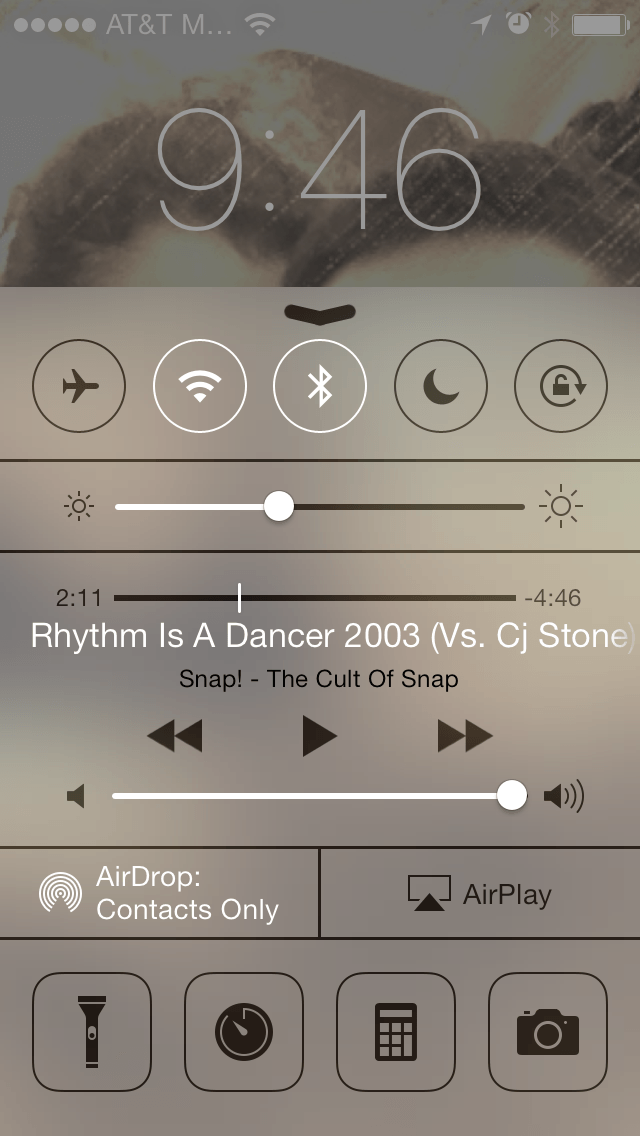
    Airplay mirroring
    Apple's airplay mirroring on ipod,ipad and iphone allows us to wirelessly stream the screen to a Tvdisplay via the Apple TV.But if you want to mirror the screen to your computer then try this trick.There are different apps for windows that allows windows to act as an airplay receiver.Mirroring your iphone/ipod/ipad screen to your computer allows you to share the screen to a group of people around you.This trick will also be helpful when you want to teach someone to do something in iphone.Without further explanation lets do that!

    Things You Will Need

    • An Apple iPhone/iPad/iPod touch
    • An internet connection
    • A Mac or a PC
    • Reflector app (Ofiicial Website)

    Steps To Mirror Your iPhone/iPad/iPod Touch To Your PC

    1. Free download reflector app from the below link.
    2. Install reflector app and launch it.
    3. Open  preferences and save the settings.
      Open preferences
    4. You will now see the airplay option displayed right next to the airdrop option.
      Airplay option next to airdrop
    5. Click on that and you will be taken to a new page.Choose your computer from the list again.
    6. Turn on airplay.You will now see your ipod/ipad/iphone displayed on your computer screen.
      Turn on mirroring option
    Note:Make sure to run the reflector app throughout and make sure that the internet connection is active.

    How To Turn It Off?

    To turn it off simply close the reflector app from your computer.

    Saturday, December 7, 2013

    How to create amazing intros for your video for free?

    Flixpress
    Video intros are great way to start a video.Intros are especially needed when you are starting a video series like one in youtube.Morever good intros can hook up your viewers for a longer period of time.But if you are not a good video creator then ask someone else to do it for you.If you are interested in creating one yourself then here are the ways how you can do it.

    Flixpress

    Flixpress is  a website which allows you to create video intros for free.This website has both paid and free templates to work with.Once completed you can download the file to your computer.This is the simplest method to create a video intro for beginners.Take a look at a sample video that I have created with flixpress.

    Get Free Templates Online

    If you have a basic knowledge on  using video editing software such as adobe after effects then it is better to download templates for it and then download it.You can search for adobe after effects,etc. templates on google.This way you can have further customizations than before.Youtube is also a great place to look for template files.Take a look at the video that was created using after effects template.Check it here.

    Hire Professionals

    If you are looking to create more professional video intros then hand this duty to others.You can find someone to do this job in fiverr.com for just 5$.
    Best of luck creating video intros!

    Monday, October 14, 2013

    How to take high quality chroma key in Adobe After Effects CS5 ? (Part 1-Creating a garbage matte)

    Create a garbage matte
    When using a green or a blue screen,the only area that matters is the area around the subject.However,while filming a video you intentionally or unintentionally include extra elements in the video frame.The first step in the chroma keying process is to create a garbage matte,which is a mask that you draw to remove the unnecessary areas of the video frame and to isolate the subject and the area immediately around it.The garbage matte has to completely enclose the subject.If the subject is moving it is important to animate the vertices of the mask to accommodate the moving subject in the video frame.
    Perform the following steps to create a garbage matte:
    1. Drag the files into a new composition in the project panel.In our case we have created a new composition called chroma keying and placed two footage items in the timeline panel.
      Two footages in the composition chroma keying
       
    2. Select the layer containing the green/blue screen background in the timeline panel.
    3. Move the playhead to the desired time mark on the timeline,where the subject takes maximum area on the screen.
    4. Select the tool that you want to use to create the garbage mask.in our case we have selected rectangle tool.
      Rectangle tool in adobe after effects cs5
    5. Select rectangle tool and click and drag the mouse pointer around the subject to create the garbage mask.
      Garbage matte hides the unnecessary part of the video frame
    6. Select File ->Save from the Menu bar to save the project.
    You can use the pen tool to create the garbage mask in case you want to mask out complex areas.It is always preferred to create a large garbage mask to not cut out any of the subject's movement.Alternatively,you can create  a smaller mask that matches the contours of the figure of subject and then animate the position of the vertices on the path using the Mask Path property.
       In the next part you will learn how to create a chroma key like a pro.

    Wednesday, October 9, 2013

    Recommended Method To Open Password Protected Zip File Without Password

    Recommended Method To Open Password Protected Zip File Without Password
    It has now been common that at least 10 of every 100 files that you download from the internet is password locked.This is locked either because it is scam or the owner doesn't actually want to share it with you.There is no way to realize whether it is fake or not other than just opening the password protected file.Getting the passwords to unlock these are quite difficult because most of them are locked down in surveys.I have already told you how to open password protected zip file without password in my previous posts.I have seen a great positive response to my how to open password protected rar file without password posts.Therefore I will share a similar trick to unlock zip files without password in this post.
    Please note that this post is only for educational purpose and does not promote hacking/cracking.

    Things You Will Need

    • A good PC (It's better if you have a good one)
    • Ultimate Zip Cracker Software
    • Decryption key :   tHaNK!yOu!

    Steps To Open Password Protected Zip File Without Password

    1. Copy decryption key and visit this link.
    2. Install it following the steps in the read me file.
    3. Start the program after successful installation.
    4. Set the path of the zip file.
    5. Choose the search method as password wizard (recommended for most cases).
    6. Click start and choose the appropriate options in the password recovery wizard (we recommend you to skip unnecessary methods like date search for faster search).
      Ultimate Zip cracker
      Always check the appropriate options in the recovery wizard.
    7. Copy the password from the pop up and unlock your zip file.
      unlock password protected zip file
      Pop up with the password

    If that doesn't work...

    If you are unable to retrieve the password for the locked zip file after following the above steps then we recommend you to choose the search method as dictionary attack and then for brute force attack.Brute force attack can take so long depending upon password length.Choose the settings appropriately.

    Video Tutorial
    To learn more about each recovery methods and to learn where to use them,make sure to watch the video right below.


    If you still have trouble or if you find it difficult to choose a search method then tell us in the comments.We will try to find a solution for you.If you find any mistakes in this post tell us in the comments.

    Sunday, September 22, 2013

    Check Whether Your PC Can Run A Game

    Be a gamer!
    Everyone loves playing games!Today we have games that are just like cinemas.Modern games have high texture quality and animations which requires a good PC.Many people lands on buying games that are not supported on their system.If you are one among them this post will be extremely useful to you.You can also know where to spend your money for a better game play.Many sites provides information on system requirements for a particular game.But these system requirements are not worth or we don't want it either.This is where system requirements lab helps us.

    Can you run this game

    System requirements lab is a site that scans your hardware online and tells whether you can run a game.They have a huge and daily updated game database.So make sure you visit this site before buying any games.Of course,if you are having a high end PC,there is nothing to worry about.They will tell whether you can run a game on minimum,recommended or optimal settings.Be a game forecaster!

    How To Check Whether Your PC Can Run A Game?

    1. Go to System Requirements Lab
    2. Choose the game from the list and hit 'Can You Run It'.
    3. Choose the option by which you want them to scan your system specs.
    4. Wait for it to scan your system.
    5. You will see the results along with upgrade suggestions to play the game in minimum,recommended or optimal quality.
      Pass or fail

    Alternative Way To Check Whether You Can Run A Game

    1. Go to game-debate.com
    2. Choose the game company.(By default it is selected EA.Click on the company logo  to select the company.)
    3. Choose the game from the drop down list.
    4. Fill up your system specs details below.
    5. Click Proceed.
    6. You will now see different ratings for your specs.A higher rating means you can run the game flawlessly.
    Note:You need to know your system specs to perform the second method.

    Do you have a high end PC?Are you able to play latest games without lag?If so,tell us your system specs and the game you tested.We would love to hear that in the comments.
    Otherwise tell why you want this tool and which game you tested with this tool?
      Check out our youtube channel

      Friday, September 20, 2013

      How To Extract Password Protected RAR Files Without Password ? (Free download link)

      Unlock password protected rar files without password
      Everyone hates fake content! Today many people cheap and fake methods to build traffic.One of them is fake content like password protected RAR files.I have already written a post on how to open password protected zip files without password and that had helped many people.Since that post many have been asking me how to open password protected RAR files without password.I have been looking for a working method to open RAR files without password for a long time and now I will share you this working trick.
                      You need to have two things to successfully open the password protected RAR file.The first one can be downloaded for free from the link below.The second thing is to have patience because this might take so long depending upon the password length.If you have both of these then go ahead with the below steps.
      Please note that this post is only for educational purpose and does not promote hacking/cracking.


      Steps To Open Password Protected RAR Files Without Password

      1. Download the software from below link
      2. Install it.
      3. Click Open to open the RAR file.
      4. Choose the type of recovery option from the given options.(Check out the below paragraph)
      5. Click the green start button icon.
      6. Wait for it to complete.
        Rar password unlocker tool
      7. When the password is found copy it and use it to unlock your Rar file.
        Password found by rar password unlocker tool

      Choosing The Right Recovery Option & Settings? (Very Important)

      Recovery Tab

      There are three different recovery options in the Recovery tab in this RAR Password Unlocker Tool.They are as follows:
      • Brute-force Attack-This method tries all the possible combinations to unlock.This is recommended  for RARs downloaded form the internet where you don't know anything about the password.
      • Brute-force with Mask Attack-This is almost similar to the above method.The only difference is that you can use this method in cases where you know some symbols or letters of the password.
      • Dictionary Attack-This method is recommended in cases where a user has forgotten the password or the user believes that the password is an english word rather any symbols.You can manually set any dictionary file in this tool.

      Brute-force Tab

      When brute force with mask attack is selected the options in the brute force tab becomes usable.This options include the ability to set the password length and provide information about the password including prefix,suffix,letter,numerals,etc.We highly recommend you to fill up these information if you are using the brute force with mask attack option.
      Brute force tab in rar password unlocker

      Dictionary Tab

      This tab gets enabled when you select the dictionary option.This tab includes a couple of features including ability to use different dictionary file,max password lengths,etc.

      Option Tab

      The option tab includes 3 options including program priority,auto-save function,auto shut down upon recovery completion.
      Options in rar password unlocker tool

      Videos are a better way to understand or learn things.Check out our video tutorial below.

      Further Reading : Recommended method to extract zip file without password (Most working)
                                 Extract zip file without password (Less chance of working)
                                 Learn to unlock or bypass surveys
      Leave a comment about this post and how we can improve it.
      Please share this post!

      Tuesday, September 17, 2013

      Search With Your Voice In Google {+Top features}

      Get Google voice on your PCAre you tired of searching by typing?Then this post is apt for you.Google has recently released Google voice where you can search with your voice.In Google search you can see a tiny little mic icon to the right of the search box.Tap on it and speak what you want to search.
      You are ready to go!
      You can also get answers to your queries.Below are the different type of queries that you can use in Google to get answers quickly.The main attractive feature is that it speaks out the answers.


      How To Get Google Voice On Your PC?

      If you can't see the mic icon on Google search box follow the below steps.
      1. Go to Voice search.
      2. Click on Try voice Search Now.

      How To Get Spoken Answers?

      By default spoken answers is enabled for all users but if you believe that it is not enabled for you follow the below steps to enable it.
      1. Go to Search Preferences
      2. Under Spoken Answers section click on Speak answers for voice search.
      3. Click save.

      What You Can do With Google Voice Search?

      Time

      You can ask Google to find the time by asking "what time is it" or if you want to know the time of a particular country you can use the following syntax "what time is it in New York".

      Weather

      Just like time you can search for weather details like "how is the weather today".This query will show weather details for your area.But if you want to find the weather of a particular region ask something like "how is the weather in California".

      Calculator

      You might be aware of Google's calculator but you might not be knowing that you can use this calculator with your voice.For example you can ask "what is 1000 -500".This will show up your answer in a calculator so that you can do further calculations.You can use different mathematical operators in your commands.You can also convert any number into binary,octal or hexadecimal by speaking "convert 20 into binary".

      Timer

      You might not be knowing that you can set a timer too with your voice.Just say "timer for 30 seconds" to set a count down timer that beeps at zero.This function can also be used without the voice.

      Find Movies,Albums,etc. 

      This is a very interesting feature that can be used even without the voice.But this feature gets its life with voice.Just ask "find movies starring Johnny Depp" to find all the movies starring Johnny Depp.You can also use this feature to find albums,musics,etc like "find albums of Michael Jackson".

      Find Restaurants

      You can easily find nearby restaurants by speaking "find nearby restaurants".This will list up nearby restaurants along with a map of their location.

      Map

      This old feature has now been integrated to Google Voice.Just say "show me my location" or "my current position" to display the map of your current location.You can also get map of other regions by speaking "show me the map of Chicago".

      Find Pictures & Videos

      With this amazing feature you  can easily search for pictures or videos of a person by simply speaking "find pictures of Ray William Johnson" or "find videos of Ray William Johnson".

      Get Word Definitions OR Answers To Common Questions

      You can easily get word definitions by speaking "what is a transistor" or "what is meant by transistor".If you want to find answers to common questions just go a head with your questions.For example ask questions like "what is the distance between the earth and the moon" or "who is the founder of Google" or "who is the president of USA".If it could not find the answers it will simply search instead.

      Convert Currency

      You can easily convert currency values by speaking "how much is 1 dollar worth in India" or "convert dollar to rupees" or "convert 100 dollar to rupees".

      Sports

      You can  also get sports results by asking "who won yeterdays grand prix" or ask for the sports score itself.

      Still more.....
      Learn all the search tricks and tips here.

      Further Reading:How to get apps like Siri on PC?
                                   Best Siri Alternative Apps For Android

      Have I missed any features of Google voice or do you know any other tricks?If so let us know in the comments.

      How To Extract All Hyperlinks In A Webpage ?

      Sometimes you might need to have the all the hyperlinks from a webpage.For example if you are a developer you might be in need of a javascript or css of a webpage that is hosted externally.Sometimes this trick will also help you extract the download link from survey sites.Whatever might be the reason let us learn to do this.We will learn 3 different ways to extract hyperlinks from a webpage in this post.


      Extract Hyperlinks From A Webpage In Chrome

      This trick is very simple but is limited to Google chrome users.The trick is performed with  via the Chrome Dev tools.
      Steps To Extract Hyperlinks From A Webpage In Chrome
      Extract hyperlinks from a webpage in chrome
      1. Go to the page from which you want to extract the hyperlinks.
      2. Click on 'Inspect Element' from the right click menu.
      3. Click on the 'Console tab'.
      4. Now paste the following code in the input field.                                                                                                                                 urls = $$('a'); for (url in urls) console.log ( urls[url].href );
      5. Hit enter.

      iWeb Tools's Link Extractor
      Extract hyperlinks using iweb tool

      This is a web based service which means you don't have to download any software nor it is limited to any users.You can use this tool here.This tool will show the type of file along with the anchor text in the output field.
      How To Use This Tool?
      Using this tool is very simple.All you have to do is to go the the above url.Enter the webpage url in the input field and hit extract!

      BuzzStream Tool

      Extract hyperlink from html codes
      This is quite different from the other two because in this case we are extracting all the urls from an html code.This trick will not display the output links on the website itself.All the links on that page are exported as a CSV file which automatically downloads to your computer once you hit the create CSV button.The CSV file has three different columns including the actual link,it's original website and the anchor text.
      How To Use This Tool?
      1. Go to Buzz Stream Urls Extract Tool
      2. Copy the source code of the webpage from which you want to extract the Url.
      3. Paste it in the tool's input field and hit create CSV.A CSV file containing the hyperlinks will automatically be downloaded to your computer.
      How To Get The Source Code Of Webpages?

      Chrome:Right click on the webpage and click on view page source or press Ctrl + U
      Internet Explorer:Right click from the webpage and click on view source.
      Firefox & Netscape:Right click  and click on  view page source or press Ctrl + U
      Opera:From the view menu click on source or press Ctrl + F3

      Why Google Chrome Is The Best Browser For developers?

      Friday, September 13, 2013

      All You Need To Know About SSDs | Buyers Guide

      Complete Guide To SSDs
      SSDs are storage drives which have an increase performance than hard drives.SSD stand for Solid State Drives.They are so fast in read and write,power efficient,less size and weight,no moving parts,less heat output,increase lifespan,etc.If you want to upgrade your hardware components for performance then upgrading your PC with a SSD is the best that you could do.SSDs are so expensive when compared to a Hard Disk.That is why many people still use HDD.If you are looking to upgrade your PC with a SSD then this post is right for you.I hope this guide to SSD helps you.

      Pros Of SSDs

      • Speed;Access Time - SSD are so fast than HDD.This is because they use flash memory to store data rather than a magnetic tape.
        SSD vs HDD Read/Write Comparison Chart
      • Lifespan - They are having a very good lifespan than a HDD.HDDs have moving parts inside them which makes the drive wear down after a long time.SSDs do not have any mechanical or moving parts like HDDs and therefore has a better life span than HDDs.
      • Size & Weight - They are usually available in 2.5 inch size that can be fit in a laptop.There are also 3.5 inch SSDs.You need to have a 2.5 inch to 3.5 inch mounting adapter to install a 2.5 inch SSD onto your 3.5 inch bay.They are also lighter than a HDD.
      • Significantly Less Heat -They produce comparatively less heat than a typical HDD.Less heat means your computer can run more efficient for a longer period of time.
      • Power Efficiency - They are power efficient too.They consume less power than a HDD.
      • Generates No Noise - As I mentioned earlier they do not have any mechanical parts in them.This makes them noise free!

      Cons Of SSDs

      • More expensive - They are so expensive than a HDD.For example: A 3TB 7200 RPM 64 MB Cache SATA 6.0 Gb/s  HDD will costs around $140 whereas a 512 GB SSD will costs you around $520.
      • Less Capacity - SSDs are now available in small capacities only.

      Choosing The Right SSD

      All SSDs are fast but when you are spending your dollars on a less storage device you should consider these tips.
      • High Maximum Speeds - Max read speeds are around 400MB/second, and max write speeds are around 300MB/sec . These numbers do not have to be exact. A little faster or slower won't make a significant difference.
      • Multi-Level Cell (MLC) NAND flash memory - When shopping for SSDs you might have come across MLC and SLC memory.The primary difference is that MLC memory can store more information on a each cell and it is cheaper than SLC memory.SLC memory has a more performance than MLC.
      • SATA 3 - This term confuses to many people.Some people consider this term as SATA port with 3.0 GB/s while some consider this as the generation name.Usually this is said in generation name i.e. a SATA 3(6.0 GB/s) or SATA 2(3.0 GB/s).Make sure your SSD supports SATA 3 for faster performance.You will enjoy the speed of SATA 3 only if your SSD and your motherboard supports it.All SSDs are backward compatible i.e ven if your SSD is SATA 3 you can still run it previous generation SATA ports.


      © 2013 Klick Dev. All rights resevered.

      Back To Top