Showing posts with label Internet trick&tips. Show all posts

Wednesday, April 30, 2014

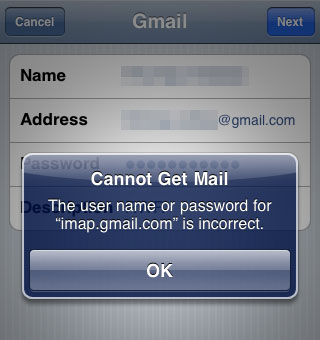
How to fix incorrect username/password error for gmail on Apple mail ?

How to fix incorrect username/password error for gmail on Apple mail ?
Ever wondered why Apple's mail show's incorrect password error for your gmail account even though you typed it correct? While users can access gmail from gmail app it's good to have all email services show up in a single app. In this post I will explain how to fix the incorrect username/password error for gmail on apple mail. This error is caused for gmail users who have opted for 2 step verification. The fix is to use a unique password for apple mail since it doesn't use 2 step verification.
Note: This fix works only if you have opted for Google's 2-step verification.


Steps to fix gmail error on apple mail 

  1. Go to Google account settings.  
  2. Switch to the security tab. 
  3. Under Password section, click settings displayed next to 2-step verification. 
    How to fix incorrect username/password error for gmail on Apple mail ?
  4. Re-enter your password if it prompts. 
  5. Now switch to App-specific passwords tab and click on manage application-specific passwords. 
    How to fix incorrect username/password error for gmail on Apple mail ?
  6. Re-enter password if it prompts. 
  7. Type a name in the box and hit generate password. 
    How to fix incorrect username/password error for gmail on Apple mail ?
  8. A computer generated password appears on the screen for one time use with the app. 
  9. Go to settings in your apple device. 
  10. Tap on Mail,Contacts and Calendars. 
  11. Under Accounts tap on Gmail. 
    How to fix incorrect username/password error for gmail on Apple mail ?
  12. Tap on your account and enter the unique password in the password field. 
    How to fix incorrect username/password error for gmail on Apple mail ?
  13. Tap done.
This demo has been shown on an Apple iPod touch running ios 7.1. If you haven't upgraded your ios to 7.1 then check out these reasons why you should do update to ios 7.1.


Tuesday, April 8, 2014

9 Things to Remember While Designing Mobile Websites

There are an increasing number of mobile devices coming into the market every day and they are being used by people to access the World Wide Web. Thus having a mobile website can get your products and company much wider attention. With Smartphones and Tablets ruling the roost today, the web has gone into a mobile mode and there is no way back. And this is only the beginning in some ways, which is why it’s important to pay attention to mobile design of your website.


9 Things to Remember While Designing Mobile Websites
The point to remember is that a website that can look appealing on your desktop or laptop for that matter might not render itself well on a mobile device. That’s the reason mobile design for your website is crucial and it can be created keeping seven important points in mind.
This is a guest post by Ramya Raju from colorcharacter.com

1.Simplicity is the key

An integral element of mobile website design is simplicity and it has to be at the forefront right from the onset. Rather than delving into long sections that can be tricky to read you can opt for crisper and easy to follow portions. You might also want to reduce the clutter by taking off low priority content. Single columns work a lot better with mobile designs rather than long drawn out ones that make horizontal scrolling necessary.

2.Keep your target audience in mind
Keep your target audience in mind

Mobile websites should be created taking into account your business goals and the interests of your users. It’s important to understand your audience demographic and the experience they might have with mobile devices. In case a website is catering to the younger audience then there is a greater possibility that they will have greater mastery over their mobile devices. On the other hand websites that are meant for an older audience will have to incorporate special design elements to make things more convenient to them.

3.Device demographics should be paid attention to

You have to bear in mind the kind of devices your target audience use and make sure the website works well on them. You can make the most of analytics programs like Mobile Analytics API from Google to get a better idea of the devices they use. Once this step is done, you can follow device testing strategy so you know that your users have a pleasant experience working on them. This will be a good teller for the functionality of your site on the right mobile devices.

4.Pop ups should be eliminated
Pop ups should be eliminated

Browsing experience can be seriously hampered by new windows or pop ups. Browsers meant for mobile devices don’t generally support pop ups and even if there is scope for new window, you will realize that there’s very little place to pop into. To try and cut down on these unpredictable results, it’s better that you eliminate pop ups completely.
If there are some functions that cannot be carried out without a pop up then you might want to alert the users beforehand. Frequent refreshing of pages should also be avoided because mobile devices have limited memory and it can be filled up easily. It’s a better idea to let the user refresh the page whenever he or she wants to.

5.The design should be an extension of your whole site

You might want to create a mobile design for your website but that doesn’t mean you lose the look of your full website. In case there are certain colors etc that are associated with your brand or products then they should find a place in your mobile website. However one thing you should pay attention to is that users can get to the place they want to without having to go through too many clicks. Thus the quality of the site will be maintained and your users won’t be put through a frustrating experience.

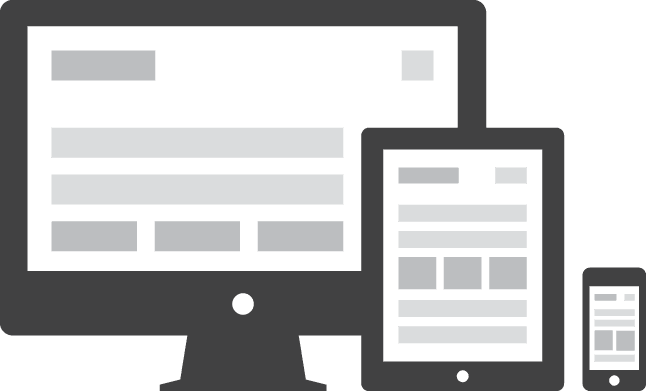
6.Responsive Web Design makes a difference

Responsive Web Design
The ground reality is that there are number of web devices that are being launched every year. Hence you can’t check your site on just a few browsers or test it for launching. Your site will have to be optimized for a wide range of desktop and mobile browsers. Each of them is known to have its own support technology, screen resolution and user base, which has to be taken into account right in the beginning.

7.Navigation and user input should be minimized

User input can be tricky on certain phones and since keyboards are not as convenient, user mistakes crop in. Hence it’s a good strategy to try and keep user input to minimum. You can pull out information from user’s present account when it comes to the checkout process. Similarly, you can keep the navigation minimal to a drop down menu. Built-in functionality of a phone can also be used to good effect.

8.Use color for communication

Color plays an important role in usability of mobile websites. If you use colors in right parameters, your website will be more appealing and that will increase traffic. But of course you have to guard against overuse of colors. Color can be ideally used to give contrasting effect to other design elements as far as conveying information is concerned. Focus on background colors while text colors should be avoided as they make content less readable.

9.Need for extensive user interaction should be cut down on

People using mobile devices are focused on different things when browsing. Need for frequent interactions can put them off even if they might be interested in your content. That’s the reason these interactions should be kept to minimum.
These pointers can help you with your mobile design that should focus on user experience. The bottom line is your mobile website should be valuable and helpful to your visitors.

Summary

Be creative and innovative about your mobile website design. Remember, your content should not only be compelling but usable. When users are browsing on mobile web they don’t want to dig deep and should be given what they want instantly.

Author Bio
I’m Ramya, a freelance web designer/writer based in India.  I have worked in a number of SEO projects and have a good insight into creating a web design with SEO techniques incorporated in it.  Apart from web designing and SEO I also contribute high-quality articles to top class websites and blogs. Besides business I am part-time wildlife photographer and generally an extrovert, I also like travelling to different destinations.
Contact:
Ramya


Sunday, February 23, 2014

How To Determine If A Blog/Article Directory Is DoFollow ?


As bloggers or website owners one of the most daunting tasks we have to face is that of building high quality backlinks to our site. While there are many ways of building backlinks, two of the most popular ways include building links through commenting on dofollow blogs and building links through publishing articles on article directories. However another striking fact about partaking in these methods is that not all blogs or article directories are dofollow.


What is Dofollow?

A blog is termed dofollow(in this sense we are making reference to the comments section) if its links do not use the rel=’nofollow’attribute.
An article directory is termed dofollow if the links in the article or the authors links do not contain the rel=’nofollow’ attribute.
                Links with the ‘nofollow’ attribute are termed nofollow, and thus blogs or article directories containing such links are also called nofollow blogs or article directories.
               Now that we know the difference between a dofollow and nofollow site let’s get into the details of how to find out if they are dofollow or nofollow. First we’ll find out how to determine if a blog is dofollow then we’ll determine if an article directory is dofollow.

How To Determine If A Blog Is dofollow?

One of the most popular ways of determining if a blog is dofollow is to go through the html code of the blog. It’s actually very easy you don’t have to have any knowledge of html coding just follow the instructions below and in no time you’ll become a professional at doing this. Essentially what we’ll be doing is to look in the html code of the comments section particularly at a link from any commenter to see if their links contain the nofollow attritube, an example of how this might look would be:
<a href=’mylink.html’ rel=’external nofollow’>My Name</a>
Or
<a href=’mylink.html’ rel=’ nofollow’>My Name</a>
You’ll notice in the link above that a link begins with the attributes ‘<a ‘and ends with ‘</a>’. 
  

Step 1

Go to any blog post that contains comments. I’ll be using these two blog posts as examples:
http://snitchim.com/business-blogging-tips
http://www.simplebloggertutorials.com/2009/07/simple-blogger-tutorials-list.html

Step 2

Scroll down to the comments section of the post.

Step 3

Hover over any commenter’s link, most likely the link is in the commenter’s name. Right-click on the link and hit ‘Copy Link Address’.

Step 4

Right-click on any corner of the post and hit ‘View Page Source’. This should open a new page/tab showing the html code of the post.

Step 5

In the html codes page hit “ctrl + f” this will open a search bar, now paste the link you copied in the search bar and remove the last slash (/) from the link.

Step 6

After you’ve pasted the link and removed the final slash character hit enter. You should see the line containing the link highlighted. If more than one result shows up just remember that a link begins with the ‘<a’ and ends with ’</a>’ attribute, so that is the line you’re looking for.

 Step 7

Now look within the link to see if it has rel=‘nofollow’orrel=’external  nofollow’. If any of these appear the blog is nofollow otherwise the blog is dofollow. (Please note rel=’external’ is dofollow, external just means new tab when link is clicked).


 If that doesn't work..

  1. Go to the blog post that contains a link on a comment.
  2. Right click on the link and click on inspect element.
  3. You will now see the code for that link.
  4. Now check whether the link has rel=‘nofollow’ or rel=’external  nofollow’ in it.If it contains any of these codes then the links are no follow.

How To Determine If An Article Directory Is dofollow?

A similar procedure will be used to determine if an article directory is dofollow.

Step 1

Go to any article directory and navigate to an article. In this example I’ll be using this article:
http://goarticles.com/article/How-SEO-Can-Help-in-the-Development-and-Success-of-a-Business/8522915/

Step 2

Go to the bottom of the page where you’ll find links about the author’s site. Hover over one of these and righ-click ‘Copy link address’.

Step 3

Right-click on any corner of the page and hit ‘View page source’.

Step 4

This should open a new tab with the html source of the article. Hit ‘Ctrl + f’. This should open a search bar, now paste the link into the search bar and hit enter.

Step 5

You should now see the link highlighted. Now look within the link for the rel=’nofollow’ or rel=’external nofollow’ attribute. Remember to look between the tags ‘<a’ and ‘</a>. If the attribute is present then the article directory is nofollow otherwise it is dofollow.


This article was written by Andrelle Thompson, a fellow blogger enthusiast from the blog TheJamaican Geek.
To submit your post for Complete PC Guide check this out.

Take a look here


Wednesday, February 19, 2014

How To Listen To Any Music For Free Online ?

How To Listen To Any Music For Free Online ?
Everyone likes to listen to music.Music refreshes us,inspires us and make us happy.There are several ways to listen to music.But most of them are not free.You can use youtube to watch music videos.But it takes a lot of time to load youtube videos just for us to listen to music.This is not a trick to speed up youtube buffering but this is a trick to listen to free music online.There are a lot of music streaming services such as Pandora,Spotify,etc. .Even Apple has started iTunes Radio for free music.Even though this is free these are not available in every country.Here is a trick to listen to any music for free all over the world.

Steps To Listen To Any Music For Free

  1. Go to grooveshark.com
  2. In the search box enter the music that you want to listen and hit enter.
    Search music in grooveshark
  3. Hit play.
  4. Drag more songs to the queue for continuous listening experience.
    Listen music for free

How is the audio quality?

The audio quality is not bad.However since these are uploaded by various users,the quality may vary.You may experience lower quality if you are using earphones.

Can I download them?

You cannot directly download the music but you can do that by 3rd party softwares.

You may also like: Top 5 sites to listen to free music(worldwide)

Monday, February 17, 2014

How To Get Alerts On Price Drops While Shopping Online ?

Online shopping has become common now a days.They have helped us to get good products at cheap prices.Every one likes to get offers and coupons for their purchases.We miss a lot of amazing offers for our favorite products just because we can't track the price change regularly.Now here are two methods through which you can track for price drops! Start saving!!

Steps To Track Price Change

Method 1

  1. Go to the product page with the price that you want to track.
  2. Copy the page url and then  go to visualping.io
  3. Paste the website url that you have copied and hit go.
  4. Once the screenshot is loaded drag and select the area that contains the price.
  5. Now set the check interval as you prefer.I recommend to set it to every hour since price drops/hikes at any time.
  6. Set choose trigger as tiny change.
  7. Enter you email address in the box provided and hit start monitoring.

Method 2

  1. Go to pricepinx.com
  2. Click on get started now button.
  3. Now drag the image to the bookmarks bar.(In chrome press Ctrl+Shift+B to show/hide bookmarks bar)
  4. Go to the product page for whose price you want to track.
  5. Select the price and then click on !pinx in the bookmark.
  6. Enter your email address and then hit on !pinx as guest.
If you have any doubts regarding this topic leave a comment below.Please share it with your friends.

Sunday, January 26, 2014

Top 10 ios7 Features That You May Not Know (12 Must Know Tricks)

Top 10+1 ios7 Tricks
Apple's new ios7 is cool both in performance wise and design.It adds a lot of new features when compared to the previous ios versions.Some of these features may vary depending upon the device you own.For example the iphone has a compass which is not available in the ipod touch.Its easy to start using ios 7 even if you are a beginner to apple ios interface.But there are several features that you can't find out so easily,we call them hidden.So here are some of the cool hidden features of ios7.(These hidden features are not ranked and are randomly ordered)

1. Take screenshots with home button

how to take screenshot in ios7Some times it is necessary to share whats on our screen.This is mostly important for webmasters and bloggers who need to make tutorials based on ios devices.There are several apps to take screenshots of your iphone,ipad,ipod screen.But why should you need them when there is a default switch to capture the screen.

To take screen shots on your ipod/ipad or iphone ,press and hold the home button and then click on the power button.A light flashes on the screen confirming that the screenshot was captured.Go to your photos to see the captured photo.

2. Assistive touch

Unlike android phone apple doesn't have a back button.This makes users to click the home button each and every time.Some are scared of breaking up their home button due to repeated pressing.For them this will be useful.Assitive touch is a feature for the physically disabled.This will bring up virtual home button,sound button,etc to the screen.
To turn on assistive touch go to Settings > General > Accessibility > Assistive touch(Under Physical&Motor) and then turn it on. OR ask siri to turn on assistive touch(only works in ios7). 
Steps To Turn On Assistive TouchAsk Siri To turn on assistive touch

3. Auto Stop Music

We all love listening music.Sometimes we do listen them to take a short break.There is a possibility that we continue listening them even after the time exceeds.Turning off music while we are enjoying that is difficult.So why not your apple device do that difficult part for you.
To automatically stop playing music open Timer(in the clock app) > Click on When Timer Ends option > Choose Stop Playing from the list > Click set.Now set the timer and hit start.The music will automatically stop playing when the timer stops.

4. Drag Capitalize

In ios 7 you need to click the up arrow to capital a letter.It could take some time if you are typing long sentences where you need to capitalize some letters.This cool trick will help you easily capitalize letters rather  than picking up the shift key.
To fast capitalize drag the up arrow key to the desired letter.That letter will now be capitalized.

5. Extra Characters 

It is sometimes necessary to insert the correct letter for the correct pronunciations.The default ios keyboard contains different special characters but they are not visible directly.
To use extra characters tap and hold the letter.Now slide to the appropriate letter and release your finger.
Tap and hold a letter to reveal extra characters

6. Speed Up Browsing

If you are rushing to navigate to a website typing the www. and .com is time consuming(a few sec).You may be surprised to know that you don't need to type them for every websites.For popular sites like google simply type in google in the address bar and hit go.You will be taken to the respective site.

7. Turn On Capslock

Sometimes we need to type in capital letters.It will be difficult to capitalize each letter by letter.In such cases we can turn on the capslock key.
To turn on capslock,simply doubly tap the shift key(up arrow).

8. Use Emoticons

Using emoticons is fun and is very much useful to express our mood.You may not know that apple has a lot of emoticons by default in the keyboard.You may now wonder why haven't you seen it so far.It's because you need to first enable them to use it.
To turn on emoticons in your ios7 device go to Settings > General >Keyboard > Keyboards > Add New Keyboard... > Emoji
To use the emoticons press and hold the earth icon and choose Emoji.
Hold the world icon to choose the keyboardEnjoy using emoticons

9. Clear Digits In Calculator

The ios7's keyboard doesn't have a clear button.I have wondered why is that so and found out how clearing digits work.To clear a digit that you have typed swipe from left to right or right to left in the answer pane.
Swipe right or swipe left to clear a number

10. Faster Typing

When you have a lot to type in the ios keyboard it takes time.You can save a few minutes if you could save the time for inserting a full stop,space and capitalizing the first letter.To do that double tap the space button.
Double tapping the space button inserts a  period,puts a space and capitalizes the first letter.

Bonus Tips

11. Turn On/Off Assistive Touch Quickly 

Assistive touch is a good repalcement for you iphone/ipad/ipod buttons.But the assistive touch icon appears throughout.This will make accidental click especially in games.So turning on/off assistive touch every time you need or not need them is difficult.
This can be easily achieved by siri.You can ask siri to turn on or off assistive touch.But if you are not having an internet connection for siri then here is another way to turn on/off assistive touch.
Go to Settings > General > Accessibility > Accessibility Shortcut > Assistive Touch
Now triple clicking the home button will bring up assistive touch and doing again will turn off assistive touch!
Accessibility shortcut

12. Fast Scroll Up 

Sometimes it will be difficult for you to scroll all the way up especially when the webpage is too long.But ios has a little trick that allows you to scroll all the way up with a single tap.To do this tap the status bar at the top.If clicking once doesn't do the job then tap twice.
Tap the status bar to scroll up

Other Apple Tricks


Friday, January 24, 2014

How To Increase Browser Viewing Area In Chrome ?

Browsing the internet is fun.It is more fun when you can view wide range of content in a single large screen.Using toolbars will decrease the viewing area.Going full screen will increase the viewing area but not all likes it.Large viewing area helps to deliver more text on each lines.Moreover it is beneficial in watching videos.Last but not least it looks good.Check out these different ways of increasing the viewing area in chrome.

Reduce Scroll Bar Size

Drops and drops of water makes an ocean.Therefore lets start from the small.The default scroll bar looks bad.So don't we change it with an eye pleasing ultra thin scroll bar.To use the thin scrollbar simply download  Thin Scroll Bar from the chrome store.Scroll bar diet is another such extension that you can give a try.
Thin Scroll Bar

Go Full Screen

Going full screen delivers huge viewing area.This is especially useful when you are reading online.This also eliminates the toolbars from the viewing area.To go full screen simply press F11.Press F11 again to exit full screen mode.This gif shows how big the viewing area will be.


Use AdBlockers

Ads cover up much of the space on websites.So blocking the ads will free up these spaces.Using adblocker extensions such as Adblock will help you increase your viewing area.

Sunday, January 19, 2014

How To Call/Text From iPod/iPad/iPhone Absolutely For Free? (International) {No Jailbreak Required!}

Make free calls in ipod touchTalking with friends and family is fun!There are several applications that allow you to call your friends and family for free.One of the most popular is Microsoft Skype.These type of applications only allow you to have free calls within its members(e.g :skype to skype).That means if you want to call someone's mobile then its not free.There are several applications that allows you to make cheap calls from your ipod/ipad or iphone.But if you don't want it to be cheaper too,then we will make it free for you.This trick will help you make absolute free calls or free text messages from your ipod/ipad or iphone.Moreover this can also help you tranform your ipod touch into a phone.This trick works in over 200 countries.You don't need the recipient to use the app for this trick to work!(Just like your phone)

What You Need?

  • An ios device
  • An internet connection
  • TextMe (free app)
  • Any ios VPN service app

Steps To Make Free Phone Calls From iPod/iPad/iPhone

  1. Download TextMe app for free from the appstore.
  2. Launch the application and create a new account.
  3. You will now be rewarded with 10 credits.Credits allow you to make free calls.You can earn free credits by completing offers ,inviting friends or by watching videos.You can even buy them too.
  4. Click on the upper right telephone icon to open the keypad.
  5. Dial the number and click on call.Wait for the user to answer the call.(Check out the last topic to learn to earn more credits fast and easy)
Video Tutorial


Steps To Send Free Text From iPod/iPad/iPhone To Mobiles

  1. Launch TextMe.
  2. Navigate to Text & Call Abroad (Swipe from left to right for navigation pane)
  3. Choose the country and type  in the mobile number.Click Find.
  4. Click on send text.
  5. Type in the message and hit ok.Enjoy free sms!!
Swipe from left from navigation paneSend free text from ipod touch

Steps To Get Credits Fast & Free 

To make calls one after another or for a long time you will need to have enough coins.To earn coins navigate to earn credits from  the navigation pane.You can earn coins for free by:

  • watching videos (1-3 coins per video)
  • completing offers(downloading apps)
  • referring friends
These are simple ways to make coins,but there are not enough offers available in certain countries like India.So here is a simple trick to get around this problem.
  1. Download any VPN apps such as Hotspot shield,SurfEasy VPN,etc.
  2. Run the app.Certain apps allow you to choose the region for your new ip adress.If you have this option then choose the region as US.
  3. It will ask for you to install profile.Click install.
  4. You will now see your internet connected to VPN servers.
  5. Open TextMe and navigate to earn credits.
  6. You will now have lot of offers and videos to earn credits.Complete them to earn credits.
  7. To disconnect the VPN go to Settings > General > VPN.If you have a separate profile for turning off then click off.
  8. Restart TextMe and make free calls.
Video Proof Of The Call

Screenshots From SurfEasy VPN


I hope this trick is useful for you.If you have any doubts then don't hesitate to ask me in the comments.If you like this post please click on the +1 button in the footer or the share button in the top right of sidebar.


Wednesday, October 9, 2013

Recommended Method To Open Password Protected Zip File Without Password

Recommended Method To Open Password Protected Zip File Without Password
It has now been common that at least 10 of every 100 files that you download from the internet is password locked.This is locked either because it is scam or the owner doesn't actually want to share it with you.There is no way to realize whether it is fake or not other than just opening the password protected file.Getting the passwords to unlock these are quite difficult because most of them are locked down in surveys.I have already told you how to open password protected zip file without password in my previous posts.I have seen a great positive response to my how to open password protected rar file without password posts.Therefore I will share a similar trick to unlock zip files without password in this post.
Please note that this post is only for educational purpose and does not promote hacking/cracking.

Things You Will Need

  • A good PC (It's better if you have a good one)
  • Ultimate Zip Cracker Software
  • Decryption key :   tHaNK!yOu!

Steps To Open Password Protected Zip File Without Password

  1. Copy decryption key and visit this link.
  2. Install it following the steps in the read me file.
  3. Start the program after successful installation.
  4. Set the path of the zip file.
  5. Choose the search method as password wizard (recommended for most cases).
  6. Click start and choose the appropriate options in the password recovery wizard (we recommend you to skip unnecessary methods like date search for faster search).
    Ultimate Zip cracker
    Always check the appropriate options in the recovery wizard.
  7. Copy the password from the pop up and unlock your zip file.
    unlock password protected zip file
    Pop up with the password

If that doesn't work...

If you are unable to retrieve the password for the locked zip file after following the above steps then we recommend you to choose the search method as dictionary attack and then for brute force attack.Brute force attack can take so long depending upon password length.Choose the settings appropriately.

Video Tutorial
To learn more about each recovery methods and to learn where to use them,make sure to watch the video right below.


If you still have trouble or if you find it difficult to choose a search method then tell us in the comments.We will try to find a solution for you.If you find any mistakes in this post tell us in the comments.

Sunday, October 6, 2013

How To Speed Up Your Blogger Blog Load Time?

Speed Up Your Blogger Blog Load Time?
No one like waiting even for a very short time.Slow webpages tend to have higher bounce rates.I have recently blogged the way you can understand what causes your site to load slower using the Google's PageSpeed Insights.But how can you use these suggestions to improve webpage load time.There is no single tool to improve your webpage load time rapidly but there are several tools which can be used together to achieve this.Let's get on to these tools and tips without further explanation.

Before starting with these tips check your webpage speed score here.

Tips And Tools To Speed Up Webpage Load Time

Note:The tools and tips may not be in order of importance.

1 ) Avoid Too Many Javascripts OR Add Them Before Closing Body Tag

Avoid Too Many Javascripts
Some extra features are good for your blog but more of them can kill your blog.Too many java scripts in your blog can cause your site to load too slower.Therefore find time to remove unnecessary javascripts.If you want to have them all,then it is better to host the javascripts externally and paste it at the end of body tag ( before < /body> ).This will allow the site to load first and then the javascripts so that the user can read the content while the javascript is loading.

2 ) Compress The Codes

Text don't eat up space but compressing large chunks of text can help you save at least a few kilo bytes.You can use online code compressors such as htmlcompressor or javascriptcompressor to compress your codes.What it does is remove the spaces in between the codes in order to save bytes.
How to compress blogger template? Copy the entire template code from the Edit HTML option and paste it in the htmlcompressor and click compress.Now replace the entire blogger template with the compressed code from HTML compressor.
A compressed code will not be properly formatted so that you won't be able to work on it.There are several websites that allow to beautify or format html codes.One such is Online Code Beautifier.You can use this tool to properly format the compressed HTML to work on it.

3 ) Limit The Number Of Posts On Homepage

Too many posts in the homepage can lead to delay in loading homepage.It is therefore recommended to limit the number of posts on the homepage.You can do that by going to the layout tab and then click edit on Blog Posts.Enter the number of posts on your homepage and hit save.
Note:Blogger has a size limit of 1 mb on the homepage.If you are experiencing issues on all gadgets/posts not being loaded it is likely that you exceed the limit so far.
Limit The Number Of Posts On Homepage

4 ) Add Line Breaks Even If You Are Using Auto Readmore

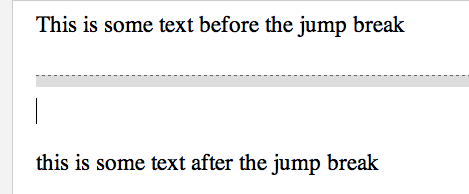
Line breaks are a great feature that allows you to break the post into small paragraphs.This will allow post to to displayed partially on the blogger homepage with a read more link.You might not be knowing that anything after the line break is not loaded in the homepage or anywhere you use a read more link.This will drastically improve the page load time of your homepage if you display only post summary on homepage.
Add Line Breaks Even If You Are Using Auto Readmore
Why to add line breaks for templates with auto readmore? Most of the new blogger templates has auto read more function.What it does is that it displays only a limited number of characters in the homepage without the need for adding a line break.This will help you to get  uniform sized post summaries on your homepage.But auto readmore function loads the entire post and then displays its post summary which means increasing the homepage size.Therefore you will experience site not properly loaded issues.Therefore always add a line break after your first paragraph even in your auto read more template.

5 ) Compress Images

Images take some time to load.Therefore it is important to add images after compressing.You can use image optimizer,jpeg-optimizer,smush.it or compress now.If you are adding images using the add url method it is important to make sure that you add the image from popular websites.This will make sure that the images are hosted on fast servers which can improve the image loading time.
Compress Images

6 ) Reduce The Number Of Gadgets

Reduce The Number Of Gadgets
Most of the blogs contain so many gadgets.Many of these are useless.Therefore it is important to make sure that your blog has only has useful gadgets.Remember your visitors need content not gadgets.Therefore removing the worthless gadgets from your blog  can help you speed up your blog load time.


7 ) Try Removing Background Images

Background images makes your blog look good.You can see that I have added a background image to my blog header.But this can result in slow loading time.Background images used in blogs are usually very small sized image.The image is then fitted onto the screen using repeat functions.Removing background images can surely help you speed up load time.Background images are added using CSS code like 
#Widget-id{background:url ('image url') repeat center center fixed;}

8 ) Avoid Too Many Ads

Monetizing your blog to generate revenue from ads is not a bad idea but adding too many ads from different networks is definitely a bad idea.I have recently added an ad from mad ads media at the top header.But since after it I saw drastic slow speeds in load time.Therefore I removed those ads to deliver speed to my users.
Avoid Too Many Ads

9 ) Avoid Too Many External Style Sheets Or Javascripts

If you have large piles of codes in your template then it is better to host your large stylesheets and javascripts externally.If you have already hosted it externally make check out how you did that.Even if you are having too much codes you should make sure that you add all the codes into a single external source rather than too many external stylesheets ans javascripts.Also make sure that you compressed your style sheets and javascripts before hosting like I mentioned earlier.
Avoid Too Many External Style Sheets Or Javascripts

10 ) Use Fast Loading Templates

Clean coded templates and fast loading templates will also help you speed up webpage load time.I have already shared some amazing blogger templates for free very recently.You can find fast loading templates there.
Fast loading free blogger template

Now check your blog speed score again using google pagespeed insights.Compare your before and after score of your blog and leave it in the comments.if you have any points that you would like to see in this post please tell us in the comments.If you find any mistakes in this post please tell us in the comments so we can improve it.


© 2013 Klick Dev. All rights resevered.

Back To Top