Showing posts with label hangouts. Show all posts

Monday, November 11, 2013

Using Hangouts on Air To Run A Distributed Mini Conference

Sara Perry ( Archaeology ) wanted to run a mini-conference as part of her Gender and Digital Culture work using Hangouts.

The plan was to have two presentations, one from Sara in York and one from Lucy Shipley and Jim Osborne from the University of Southampton. The presentations would be screen-shared. The audio was amplified so everyone in the room could hear it ( of course ).

There'd be some general discussion ( between everyone ) time and then we'd split into teams that discussed the issues raised and add ideas and questions and solutions into a shared Google Document.

The participants, at both York and Southampton were given an iPad that was already logged into the document. Potentially, the "general public" could have "tuned in" via the YouTube stream and if anyone had have been watching it via Google+ then they would have had the opportunity to ask questions of the speakers. They used Twitter for the backchannel in this case though.


Sara ( as seen by Southampton )

A participant joining the discussion from Southampton

Lucy and Jim's presentation

The "live" shared Google Document.


The whole event went remarkably well, there was only a slight glitch when the audio broke up when someone drifted too far away from the microphones. We used regular university wifi and a macbook at our end, with the only difficulty being the fancy footwork required to get a hangout to correctly stream from a second monitor ( Tip: turn off mirroring mac folks ).

You can watch the event here and were I to say "but you had to be there" - you'd see that you really didn't. You could have watched and participated in the whole two hours no matter where you were.


Friday, February 1, 2013

How To Use Hangout Screen Sharing For Presentations


In my previous post, I asked if I was missing something ( shut  it you) with regards to using Hangouts for presentations. +Eduardo Carrillo put me right, thanks!

The trick is: 

  • In another window have your Slides presentation ready. 
  • Click "Present" and instead of clicking "Exit fullscreen" from the top of the screen, which exits the Present mode, you exit fullscreen from the little black toolbar at the bottom left. 
  • I additionally changed View > Always Show Bookmarks Bar in Chrome
  • Now, back in your Hangout select Screenshare and choose the window with your presentation in it

I think that's it. I guess at this point, one could go full screen so that the people in the real world audience get the bestest, fullest screen experience... and it wouldn't matter that you lose access to the Hangout ( from an interface point of view ). 


Having got this working, I'm not completely convinced by it. My heebies are jeebying. I can imagine this being far from intuitive for even a seasoned presenter. The UI feels sticky-taped together.

Aesthetically, I really don't like those big black borders on my presentation either... which forces you to use a white-on-black theme.

I obviously need to play with this a little more and get more comfortable with what it can do and what the workarounds and processes are. I'd like to get to the position where I could easily coach a lecturer in turning a regular presentation into one that can incorporate Hangout technology and questions and answers from remote participants and have it still feel natural, fun and slick.

Thursday, January 31, 2013

Are Hangouts Any Good For Presentations?


In recent posts I've described how we've been using Google Hangouts to stream Archaeology seminars. These have been simple point-the-laptop-at-the-speaker-and-press-go affairs. Because we had a real live and remote audience at the the last seminar I've been wondering if we could do a better job of displaying the presenter's slides rather than just the webcam video of the speaker.

At first glance it would seem that there are two ways of displaying the speakers slides. The first would be using the Google Drive tool. But when you select that tool, you are sharing the "editing" view of your slides. Not what you want at all. If you choose "Present" the app goes full screen and you lose the Hangout you're in.

The other option might be to use the Screenshare tool, but the same thing applies. You can see my slides below are being shown in a shared window, but it is with the addition of the slide thumbnails, the speaker notes and even the browser  tabs and window bar. Again, when you click present, it takes over your entire screen(s), adds a lovely brushed metal effect and blots out your Hangout. 

This way of working would be OK if you were working on the slides together, but it seems hopeless for a presenter presenting.  I had thought this might be a good way for long listed job candidates, many who might be overseas, to present for a pre-interview perhaps.


Is it me?


Is this just a Mac thing? Has anyone else satisfactorily presented slides using a Hangout? Am I missing a setting or doing something completely wrong?

For me, the way it should/could work would be for a presentation to simply fill the white area of the screen with the tools down the side remaining ( and the screen controller at bottom ). If they were being clever, I'd maybe be able to doodle on the slides. Ideally the slides would stretch to fit.. or fit the widest edge. Maybe the background colour would be detected ( to make the slides look nice ) etc.

At the moment there is so much interface clutter that the slides themselves are like a postcard propped on a mantel piece at the end of a corridor filled with filling cabinets and signage and chairs, maybe a bin or two, with lever arch box files stacked randomly here and there. The experience is like a bureaucratic pop video, obsessing on the tools and missing the action.

Wednesday, January 30, 2013

Using Google Hangouts (On Air) To Stream Archaeology Seminars


+Sara Perry wanted to use Google Hangouts to quickly and easily record seminars for students that can't make it in person and to help with promoting the work of the Archaeology dept. 

We decided on using minimal tech intervention. No requirement to use a certain presentation tool. No microphones etc.

Many presenters are easily spooked by extra technology, especially when speaking,  but we also want this to be an easy enough process that Sara will be able to make sure it happens without needing any preparation.  

This cheap and cheerful approach also guides the aesthetics of the video, we aren't planning to add titles, idents, logos etc. We tested a MacBook Pro that was close to the presenters pedestal and found the internal mic in that was "good enough" for a small presentation room. 

We did buy a cheap webcam and a long USB cable so that we didn't have to use the camera on her laptop. This means the video capture can "step back" a little and take in more of the room.


Google Hangouts vs Hangouts "On Air"

Google Hangouts are simply video conferences. You can create a Hangout in Google+ or from within a Calendar event. We often use these for quick "catch up conference calls". You could use a Hangout to include someone in a meeting who was working from home or away at a conference.

Google Hangouts On Air are very different in that they are public, live-streamed and they are stored on YouTube. Regular Hangouts are like video conference calls, Hangouts on Air are more like broadcast TV.

The Hangout Process - It'll Be Alright On The Night

1. Start a Hangout ( check the On Air checkbox). You can do this from Google+, YouTube or even this link.
2. Choose your mic and camera settings (especially if you are using an additional webcam ).
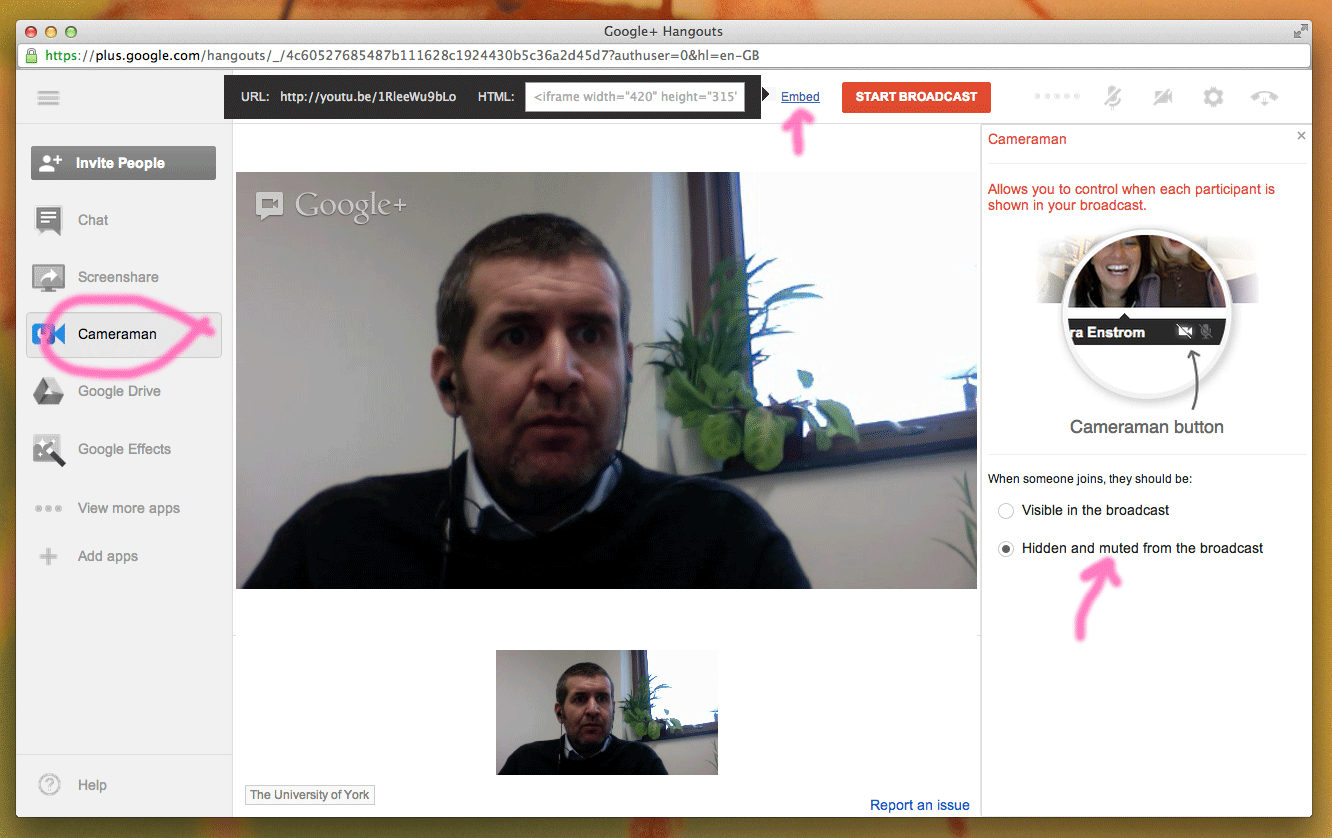
3. Click Embed and copy the You Tube link ( see below )
4. Go to that YouTube link ( you can preview your stream ) other people will get a Broadcasting soon screen.
5. Share that link on Google+ or Twitter or via email ( if you want to ).
6. Important! Click Cameraman and set When someone joins, they should be: Hidden and muted From broadcast. This means you are in broadcast mode, rather than "massive meeting" mode where people can speak ( see below) .
7. Start your broadcast.


The End Result

We've found that the microphone on the laptop is more than adequate and the webcam is essential to easily framing the speaker. 

One week, the network dropping out meant that we had to use a uStream account to capture most of the seminar. This one disaster aside, it's been a complete success with academics joining in the Hangouts on a regular basis. 

We've created a Google Site to collect together the Seminar Hangouts here...  https://sites.google.com/a/york.ac.uk/yohrs/sharon-macdonald ... where we also add any presentation files.

Here's Sharon MacDonald giving the first Heritage Seminar of 2012-2013. 


The benefits of using Google Hangouts for quick collaborative video meetings or for public “on air” broadcasts are clear:

  • Everyone at York can participate, the don't need to download special apps, or register on various sites, they already have a log in. It works right now
  • The screen sharing tools work very well with your Google Apps. Think about using Google Slides rather than Powerpoint.
  • If your laptop has a camera, and even netbooks do nowadays, you don’t even need to buy a webcam ( we only did so for aesthetic reasons ).
  • Storage is huge.
  • And as with all our Google tools, it’s free

Using Hangouts On Air To Present In Kings Manor, York and Southampton


Last night, Alice Watterson (Glasgow School of Art) presented Digital Dwelling at Skara Brae to a packed room K/111, Kings Manor, University of York about her collaboration making digital reconstructions. Here she is (above ) from the "stage" with Sara Perry.


Alice was also watched by a roomful of researchers at Southampton University, who tuned in to the Hangout and managed to ask questions in a short Q&A at the end.

We're still experimenting with how to get the best from Google+ Hangouts whilst keeping the recording process speaker-responsibility-free and technology-minimalist in that we don't want the speaker to have to do anything special to be streamed, and we also don't want Sara, who hosts the seminars to have to set up heaps of scary equipment.

We may have to compromise though. For example, if the speaker would be willing to send us their slides beforehand and willing, instead of using Powerpoint - to use the Hangout tool, then external viewers could watch the slides rather than the webcam image. This would make for a much better recording and improve the experience for external viewers but opens up the potential for all sorts of problems. Still, given a willing presenter, it will be worth a try. Maybe next time.

Alice's presentation and slides are online here:


© 2013 Klick Dev. All rights resevered.

Back To Top