Showing posts with label Google Spreadsheets. Show all posts

Friday, March 27, 2015

I Want To Improve My Spreadsheet


I often get people coming to visit me who have a spreadsheet they want to get more from. They either want to automate certain tasks, or create new sheets with aggregated data or share data with colleagues in new ways. The hope is that with a little bit of code, new vistas will open up.

Often the data is in a spreadsheet, it isn't clean enough to do anything useful with. If code is to stand a chance at making a spreadsheet more useful, then the data itself needs to be "code ready".

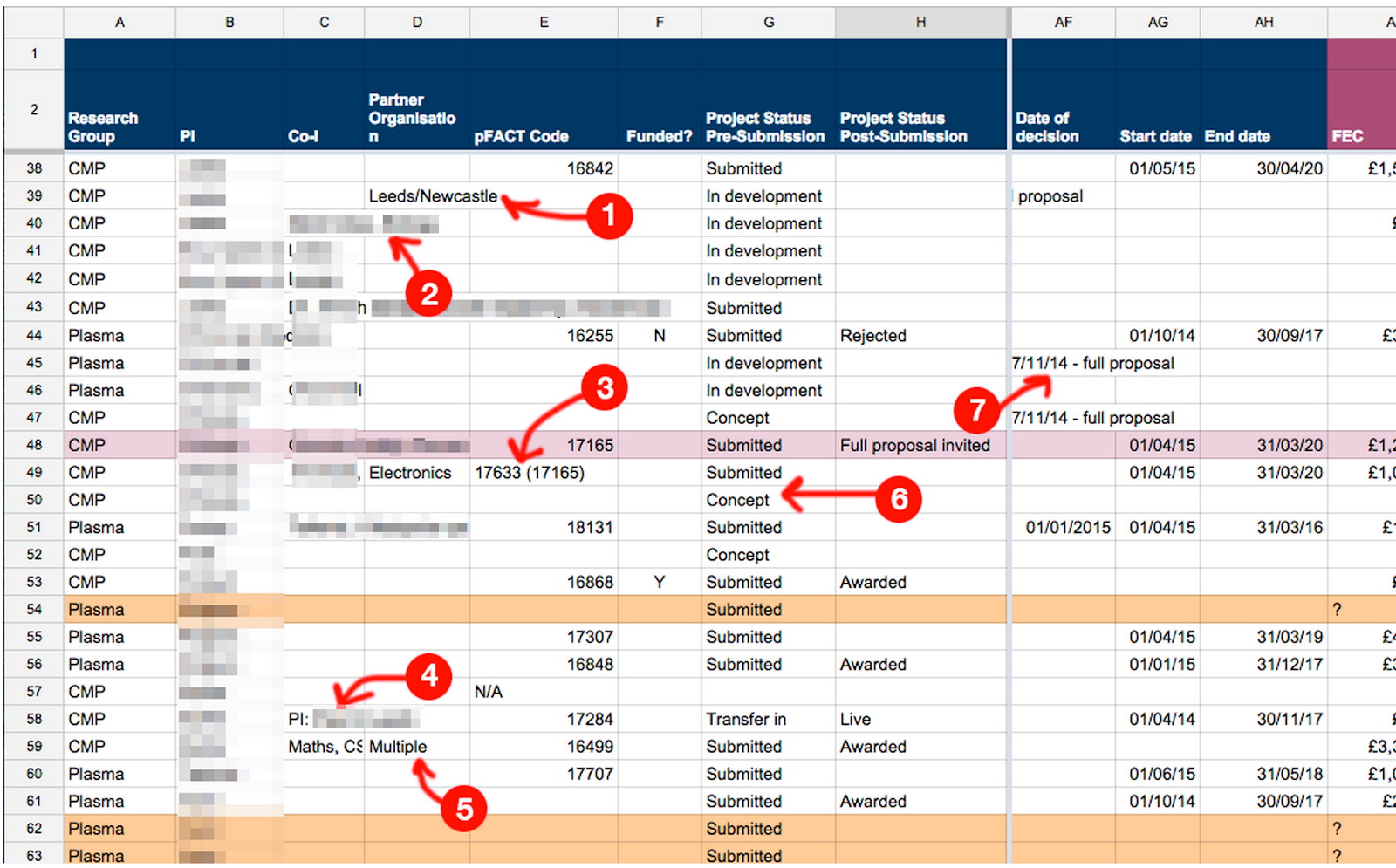
Below is an actual spreadsheet brought to me, with number of areas for that needed data cleaning.


As we worked together, we realised, a healthy spreadsheet isn't just about making sure your data is logical, there are also other factors that contribute to how easy your data will be to work with.

  • Use formulas well - A few easy to learn formulas can significantly ramp up what you can do quickly with data. It is worth investing even just a few minutes learning new formulas and what they can do for you.
  • Prevent errors - Make sure you validate data where you can, and help people not to make your data grubby.
  • Improve the interface - With Google Spreadsheets you can add menus, actions and buttons and even sidebars that can turn a spreadsheet chore into a breeze.
  • Use the charts and visualisations - Getting more out of your data can be as easy as creating a well designed dashboard using Google Spreadsheet's inbuilt charts.

Here is my list of suggestions for how to make this spreadsheet's data "code ready" in a Google Doc.

There are heaps of short videos on Google Gooru's YouTube page. In minutes you can be learning new features and taming those scary spreadsheets.


Wednesday, October 29, 2014

One-To-Many Relationship in a Google Spreadsheet

It's often the case that you want and need to be creating a database to store your data, but Google Spreadsheets are just so handy aren't they? But Google Spreadsheets are very good at relational data.

Here's an example where, you want to have one column for the name of your recipe and another for the ingredients ( comma separated ).

How you use this script is you click on the cell you want to be relational and choose the Admin > Show Relationship Editor. This opens up a dialog window showing you all the options included so far. You then alter the ingredients and it saves a comma separated list into the spreadsheet.


Here's the spreadsheet. Use File > Make a copy to see it work and rummage around in the code.

If anyone can help make the UI prettier I'd be grateful, thanks.

Creating a Documentation Process With Google Forms, Documents and Spreadsheets.

We wanted to improve the way people at the University request new software and tools. This is a process that requires lots of people's feedback and needs to be very flexible. We need to get software experts to look at it, security teams, the support teams, teaching experts to see if is a good pedagogical match. We need the licensing to looked at and the usability and accessibility. The list is astonishingly long and in these cases it often gets so that your process map just starts to look like infinite spaghetti. No wonder it didn't quite work, infinite spaghetti is always troublesome.

Much of my work involves trying to find a workable solution to a fiendish problem.. it's simplicity hunting. And when working with people around the university it's clear that they really don't want a tool that solves their immediate problem, they want abilities that solve problems like these. This is a very different thing. And besides I personally couldn't create

So, out of necessity I created (an as yet, unfinished ) Apps Script code library, to try and make doing jobs like the one above simpler. The point of this library is not to do anything fancy or specific but just to do those things that frankly Google should have rolled in as features anyway so that new coders could easily just wire their app together with a whole heap less complication.

The code library is called Handy Lumps because that's just what it is. Handy Lumps of code that you can re-use again and again. I won't tell you how to install Handy Lumps library into your code, but you can find that out easily enough. The project id is...

1ykOx87hMWudgdOl3i9XND-zeV8WEieBjVwxcPYG_2iDvX5kd70KpbfIl

So What Does This Example Do, Tom?

In this example, someone fills in a Google Form to request some new software. What it then does is take that information and render it into a Google Document template file, and put it into a folder. Lastly, it saves the URL to the new file in the spreadsheet. It's amazing how many use cases look a bit like this.

It's also amazing how many processes start by looking like something mappable, something with a clear structure but actually are closer to an iterative collaboration. For example, the template that gets created has further questions in, which can of course be added to and bent into the shape that is required. And of course using Google Document +commenting feature you can easily bring someone new into the discussion for their advice and help.


So How Does This Example Work, Tom?

Let's look at the code. First I created a Form and then went to Spreadsheet and chose the Tools > Script Editor menu and added this. I'll explain what it does below.


function onFormSubmit(e) {

  //Get the values in a nice Array
  var values = HandyLumps.row_to_dict(e.range)
  var template_id = "TEMPLATE_DOCUMENT_ID"
  var folder_id = "FOLDER_ID" // Our Responses folder.
  var name = values['Name'] + " - " + values['What software are you requesting?']


  // Create a Google Doc
  var new_file_id = HandyLumps.copy_and_render_to(template_id, name, values, folder_id)
  var new_file = DriveApp.getFileById(new_file_id)
  var url = new_file.getUrl() 

  //Update the spreadsheet with a link to the new file
  var ss = SpreadsheetApp.openById("THIS_SPREADSHEET_ID")
  var sheet = ss.getSheetByName("Form responses 1")//this sheet
  var row = e.range.getRow()
  sheet.getRange(row, 16 ).setValue(url)
 

  MailApp.sendEmail("YOUR-GOOGLE-GROUP-HERE@york.ac.uk", "New Software Request: " + values['What software are you requesting?'], url, {noReply:true})

}

The first thing the script does is turn the row of data into a nice array. This returns an array that looks like this {'timestamp':2014/29/10 10:55:45, 'name': Tom ...etc} It builds this array based on your header names ( and yes, it assumes they are unique for simplicity ) . Doing this avoids the issues with e.namedValues containing multiple items and gives me a simple array I can use later.

Next we tell the script the ids of the template document and into which folder we want the new documents to go.

We then create a new document from a template file. The template file has {timestamp} and {name} tags in which match my spreadsheet headers and get replaced with the values. To do this we use ...

HandyLumps.copy_and_render_to() 

This function returns the id of the new document created, so we then open it with DriveApp and get its URL. ( I did think about returning the File object, but often that's not what I needed anyway so decided on the simplest thing ).

I then use regular Apps Script to save that URL into the same row.

The last line mails a Google Group to let them know a new request has come in.

Ta Da!

There you have it. We've made quite a cute thing in a paragraph of non-scary code copy-and-pastee-style.

I'm all for the current trend to believe that "we all can be coders now" but I also think that the tools themselves could be made a damn sight easier to use before we welcome those brave souls willing to give it try.


Next Steps


More involved versions of the above code create a Google Doc from a template that has code in it, so that new document can show a sidebar ( for example to approve it, or give it a mark out of ten ) that let's someone move the document onto the next step. The data from the sidebar is of course saved into the right row using Handy Lumps functions like this...

HandyLumps.get_row_containing(ss_id,sheet_name, column_letter, match)


In the example above, a document's script might contain...

var doc = DocumentApp.getActiveDocument()
var doc_id = doc.getId()
var result = HandyLumps.get_row_containing("YOUR_SHEET_ID","SHEET_NAME", "M", doc_id)
var row = result[0]
var values =result[1]


... which essentially means that a document knows where to store its new data. And using cute things like Google Document's Named Ranges you can make a sidebar that stores people's textual contributions back into the original spreadsheet. I'll hopefully get to sharing that stuff later.


Monday, September 22, 2014

Inserting a Link To A Google Drive File in a Google Spreadsheet

It seems Google are changing how you use the Google Drive File Chooser which always looks a bit goofy if you are using it in a spreadsheet because of poor design.


I had a go to see if I can resize the dialog at all and I don't think so. Here's my version of their code which demonstrates how you can wire it to insert a link to a Google Drive file.

There's an example file here: Drive Dialog example. Simply go to the File > Make a copy menu to see the code using Tools > Script Editor menu.


Tuesday, September 2, 2014

Showing When An Appointment Slot is FULL using Google Forms and Apps Script

I'm sorry this isn't a finished solution you can just copy and paste. It's more of an example, sharing THAT this can easily be done which may help you figure out how to do it your case.


Lots of people at the University of York are using Google Forms to allow people to sign up to events. They use forms rather than Appointment Slots because they want to work with the data to generate registers for the people running the events.


But often these events have a capacity, that is, once 20 people have signed up to them, they're full.

There isn't much you can do with Google Forms to "live lookup" data and change form items if they're full, so we have developed workarounds to mimic this behaviour.

Firstly, having created our Form in the regular way, we create an extra sheet that keeps a track of how many people have have signed up, like this...


The count column has a formula in it like this...

=COUNTIF('Form responses 1'!G:G,B2)

...and the limit is a number we entered of how many places that slot has.

Secondly, we need to create a couple of functions that get fired when someone signs up to a session, like this...

function find_limits(rangeA1, their_choice){ //the values for the range and choice parsed in the main function
// the range is where you want to look in Group Totals var ss = SpreadsheetApp.getActiveSpreadsheet() var sheet = ss.getSheetByName("Group Totals") var range = sheet.getRange(rangeA1) var values = range.getValues() //get the count and limit values for the question's range for the user's choice for ( v in values){ var row = values[v] if (row[0] == their_choice){ return [row[1], row[2]] //the first value (row[0]) is their choice
// the second value (row[1]) is the count 
// the third value (row[2]) is the limit } } } function test_find_limits(){ Logger.log( find_limits("B3:E23", "11:45-12:00")) }

and

function check_availability(item_id, count, limit, their_choice){ var ss = SpreadsheetApp.getActiveSpreadsheet() var sheet = ss.getSheetByName("Group Totals") var form_id = "YOUR_FORM_ID_HERE" //the form ID is from the url. var form = FormApp.openById(form_id) var items = form.getItems() var item = form.getItemById(item_id).asListItem() var choices = item.getChoices() //pulls out the multiple choice question choices.  
//Can't pull out one particular choice so pulls them all out and iterates var choices_list = [ ] for (c in choices){ var choice = choices[c] if (choice.getValue() == their_choice){ if (count >= limit){ //It's up to the limit! choices_list.push(their_choice + " FULL!" ) 
}else{ choices_list.push(choices[c].getValue()) } }else{ choices_list.push(choices[c].getValue() ) } } item.setChoiceValues(choices_list) }


So, basically, when someone books an appointment, the script looks in the "Group Totals" sheet, and if the count is equal to the limited number of places, it changes the multiple choice items title to "10:00 - 10:30 FULL!".

What's interesting about this is that although you can't do live changes to the form, this script essentially changes the form items for the next person who uses it.

I did experiment with deleting the multiple choice item, but had a few funny results, so thought it best to just change its name. This can be a good idea anyway, to show to users that slots did exist but now they're gone.

Of course in this case someone can still book a full slot ( it doesn't prevent it) , but this process is, in our case, policed by a human anyway. This method is a way to heavily dissuade people from selecting full course slots.

Hope this helps.

Thursday, February 6, 2014

A Simple Example Booking Project in Google Spreadsheets

I've had a number of requests for code examples for my Booking Spreadsheet. I have held off sharing the code mainly because it became very complex and wasn't very useful as a starting point for anyone else.

But recently, I had to whip an Appointments spreadsheet together that didn't have personalised colouring of cells, that didn't create lots of sheets for a whole term, or permissions etc. 

This spreadsheet is just a list of "Book me" links that passes some data through to a simple web form, and then saves the person's email into that cell's value.

If you want to do something similar using this spreadsheet, 

a. File > Make a Copy - to get your copy
b. Tools > Script Editor > File > Manage Versions > Save New Version
c. Publish > Deploy as web app - to copy your web app URL
d. Change all the variables in the code, there's only a few
e. Run the Setup code - to regenerate the "Book me" hyperlinks to point at your new web app
f. Tools > Script Editor > File > Manage Versions > Save New Version - to update the app
g. Publish > Deploy as web app 

....and as simple as a,b,c,d,e,f,g you will have your own Booking System. 

Don't expect any help with this, you're on your own. No, really. It's only really meant for people used to working with Apps Script and spreadsheets.

Here is the spreadsheet link.

Anyway, it looks like this... 


Tuesday, November 19, 2013

From Survey To Google Spreadsheet To Google Document

Earlier today we were looking over the results of a survey we'd put out with Google Forms. The answers were well thought out, very long and textual and impossible to read in a spreadsheet.

As a group we want to read the responses and share our thoughts about them using the comment feature in Google Documents so I whipped up this script to move the all the data from a spreadsheet to a Google Document.


function document_from_spreadsheet() {
var ss = SpreadsheetApp.getActiveSpreadsheet()
var sheet = ss.getActiveSheet()
var header_range = sheet.getRange(1,1, 1, sheet.getLastColumn())
var headers = header_range.getValues()[0]

var data_range = sheet.getRange(2,1, sheet.getLastRow(), sheet.getLastColumn())
var values = data_range.getValues()


var doc = DocumentApp.create(ss.getName() + " Exported")
var body = doc.getBody()

for (var h in headers){
h = Number(h)
var header_name = headers[ h ]
var p = body.appendParagraph(header_name)

p.setHeading( DocumentApp.ParagraphHeading.HEADING1 )

for (i = 0; i < values.length; i++){
var row = values[i]
var value = row[h]
var p = body.appendParagraph(value).setHeading( DocumentApp.ParagraphHeading.NORMAL )
body.appendHorizontalRule()

}
body.appendPageBreak()
}
doc.saveAndClose()
}

function onOpen(T) {
var ss = SpreadsheetApp.getActiveSpreadsheet();
var menuEntries = [ {name: "Export to Google Document", functionName: "document_from_spreadsheet"},
];
ss.addMenu("Admin", menuEntries);
}


There was a little cleaning up to do, to remove any choice-based or numerical data items ( we could of course paste those in as images ) but this code was all we need to start easier on the eye and brain analysis of the responses.


Friday, November 15, 2013

Creating a Process Workflow with Google Spreadsheets

I thought I'd share this ongoing project I've been working on about creating workflow support for a team. I've referred to it before in a blog post called Using Spreadsheets Instead of Forms, in which I argue how using the commenting, "live saving", versioning and collaborative features of spreadsheet far exceeds what can be done with a simple Google Form (see below). This is especially so when the data you are collecting is long and complicated. ( Tip of the hat to Tim Saunders who had this idea ).


Having quickly trialled and liked bespoke workflow apps like Kissflow, and also read the documentation for bigger workflow systems like RunMyProcess, we realised that one of our first challenges was to define the mood or tone of this process. It was clear that the process we were trying to support was more consultative and discussion-based than a hard passing of numbers and approvals in a clear process flow. Our process needed to be more about "letting the right people know where they are up to" and asking for input than a mechanistic model.

As we worked we realised that the flow itself was remarkably simple and was mainly about making documents available to people for commenting and letting teams of people know what the status is.

We realised that we could break most stages of the process into simple interactions and added them to the spreadsheet as menu items, for example, "Submit initial request" or "Submit to Team B" or "Reject request" etc.

These menu items do three things:

  • Show a dialog telling the user what they were about to do
  • Sent emails to the relevant people and groups
  • Updated the project's status in a central spreadsheet
And to help us to speed up the process of development, we created a Processes spreadsheet that looks like this...


Each process gets rendered against the NamedRanges in the spreadsheet, so that {MainContact} becomes "Joanne Blogs" or whatever. Sometimes, even emails are rendered this way like {HeadOfDepartmentEmail} in the CC of the email that gets sent out.

Some special values had to be sneaked in such as {folder_link} and {link} which means that emails can contain links to the current document or GDrive folder.

Working this way has meant that fine-tuning who gets sent what is a LOT quicker, it not being hard-coded. It makes the authoring of those automatic emails which usually get sent to groups rather than people so that people can easily turn off email notification if need be. 

The menu items typically have code that look something like this...

function utc_approved( url ){
if (is_a_member_of( "planning-utc-controllers@york.ac.uk" ) == true ){
run_process( "Process:10", url )
set_status("UTC approved")
}else{
Browser.msgBox("Not allowed", "You need to be a member of the UTC controller group to run this", Browser.Buttons.OK_CANCEL)
}
Browser.msgBox("UTC approved" )
}

... and the run_process() function simply shows a dialog, renders and sends out emails and sets the status of the request. Some menu items have code that moves a folder to an "Archived" folder for tidiness sake, but nothing too complicated.

I think the thing I learned from this project, once again, is that, like Booking Systems, although they always present themselves at the door as a the same thing, they are always in a clever disguise and really are something very, very different indeed. And by the time they've got through the door and taken their coat off it's already too late.


Thursday, November 14, 2013

The Apps Script and Google Spreadsheet Room Booking System

You may remember my previous posts about attempts to create a room booking system with Apps Script. This system uses Apps Script to populate a spreadsheet with weekly sheets, that contain lots of "Book me" links ( see below ).


The "Book me" links open a very small web application that is essentially a confirmation screen with a "Book" button.

When a student books a room, the web application says "Booked" and adds the booking to a central calendar and invites the student as guest, so that it appears in their calendar.

One very important aspect of this booking system was the booking quotas that student are given. Each student can only book 3 hours a day in each room. The student is allocated a colour, not just because it looks nice, but because, as you can imagine when a large amount of students are wanting to finish their projects with a finite resource, it can get quite busy. The admin team previously has been spending HOURS policing the bookings to make sure that nobody was bending or breaking the booking rules. The student colouring system is useful for "keeping an eye" on usage of the rooms in general.

There is code to hide "past weeks" based on the day and code to allocate a colour to each user. The solution we have currently is one that is quite difficult to share simply because it is a bit complex to set up, but you may be interested in the approach which is working and despite some hacky aspects and being a little rough around the edges is incredibly simple.

The parts of this project that I like are that, although it looks a bit like a booking system, it is just a spreadsheet, and the admin can "block items" by just deleting the "Book me" links. That the web application is opened in a new tab and "disconnected" from the spreadsheet is a bit icky, but it works and students like it.

The booking system has saved hours and hours of an administrator's time who had to police the bookings every day. "You should patent this" is what they said :-)

One thing I think I've learned about making this (and other similar) booking system is that the words "booking system" should be a warning to all who hear of them. Every booking system is very subtly different, and needs different tweaks and considerations, and hacks and "by the ways" until you realise this booking system isn't subtly different at all, it's completely different. Be warned.


Monday, November 11, 2013

Tidying Up Spreadsheet Data Gathered In A Google Form

Google Forms are a great way to make it easier to get the right data from your colleagues, but after a while your spreadsheet data can get very messy and you need to organise it a bit.

For example, Jo created a form so that people could submit requests to go on external courses that asks for all the data needed for them to be able to make a decision about it. It asks how much it costs, how much the hotels and travel will be and who will benefit from the course etc. It works really well.

But now that lots of people have submitted it, and had their course requests approved, she wanted to tidy up the spreadsheet without losing the data so that it was easy to process a small list of current requests. Funnily enough, two other people in the last two weeks have come to me with identical needs, so here's an example that works.

What it does...

All this script does is, if you set a column called "Status" to "OK", then it moves that row of data to a hidden sheet. The sheets are organised by which department they come from. So, for example, if in the form you have selected "Senior Management" as your department, then the script looks to see if there is a sheet called "Dept: Senior Management" and if there is - it uses it, and if there isn't it creates one. Then it moves the data to that sheet and hides the sheet.

It's very simple but an extremely handy way to make working with current course requests so much simpler.

To use it...

Either go to my example spreadsheet here and File > Make a copy and give it a trial on your version. You will of course need to fill in the form a few times to be able to set the Status column to "OK" and see it working.

Or you can copy-n-paste the code below into your spreadsheet's Script Editor, changing the values to match your department name (or whatever you want to use as your differentiator ).

Tip: You may need to run the Script from the Script Editor to get it to Authorise to begin with.


function onEdit(e) {
var ss = SpreadsheetApp.getActiveSpreadsheet()
var sheet = ss.getActiveSheet()
var sheet_name = sheet.getName()
var range = e.range

if ( sheet_name == 'Form Responses'){ // We're on the right sheet(s)
var row = range.getRow() // which row is being edited?
var number_of_columns = range.getLastColumn() // how wide is the sheet?
var source_range = sheet.getRange(row, 1, 1, number_of_columns) // get the row
var data = source_range.getValues()[0] // get the row's values
Logger.log( "data: " + data )
var status = data[8] // This is the cell that controls it all. The 9th item
Logger.log ( "Status: " + status )

if ( status.toLowerCase() == "ok"){
//Move the row to a "Dept: name"
var dept_name = data[3] // This is the column that controls which sheet it will go to/make
var destination_sheet = get_or_make_a_sheet( dept_name )

source_range.moveTo( destination_sheet.getRange( destination_sheet.getLastRow() + 1 , 1 ) )
destination_sheet.hideSheet() // Comment this line out if it pisses you off
// Now delete the original row from Form Responses. Eek!
sheet.deleteRow(row)
}

}
ss.setActiveSheet(sheet) // Move the user back to the orgininal sheet

}

function get_or_make_a_sheet(name){
// If a sheet is found called "Dept: name" then that is returned, otherwise a new one is created and the correct headers added.
try{
var ss = SpreadsheetApp.getActiveSpreadsheet( )
var sheets = ss.getSheets()
for ( var s in sheets){
var curr_sheet = sheets[s]
var sheet_name = curr_sheet.getName()

if ( sheet_name == "Dept: " + name ){
// A sheet with that name exists, here it is
//Logger.log( "Sheet found: " + sheet_name )
return curr_sheet
}else{
// Do nothing
//Logger.log( "Sheet: " + name + " not found")
}
}
//No sheet found with that name, so carry on and create a new one.

var sheet = ss.getActiveSheet() // Where is it being created from? The Form Responses sheet usually.
//Copy the header row
var index = Number(sheets.length) //created in the above repeat loop, maybe sheets.length would be better?
var name = "Dept: " + name

// Get main headers
var source_range = sheet.getRange(1,1, 1, sheet.getLastColumn() )

// Create a sheet but copy the headers over.
var new_sheet = ss.insertSheet(name , index)
var destination_header_range = new_sheet.getRange( 1,1,1, sheet.getLastColumn() ) // Headers go here

// Copy the headers from main sheet
source_range.copyTo(destination_header_range)

// Make it look nice, like the headers in Form Responses
var grid_id = source_range.getGridId()
source_range.copyFormatToRange(new_sheet,1,source_range.getLastColumn(),1, 1 )
return new_sheet
}catch(e){
Logger.log( e + " " + e.lineNumber + " " + e.stack )
}
}


function test_get_or_create_a_sheet(){
var sheet = get_or_make_a_sheet( "Art History")
Logger.log( sheet.getName())

}


Wednesday, October 9, 2013

Using Google Docs To Make Google Spreadsheets Easier to Read

A lot of our staff are using Google Forms to gather lots of data into spreadsheets, from Grant Application forms to self assessment questionnaires and more.

Spreadsheets are of course great places to store lots of data, but when that data is mainly textual, it is ridiculously hard to read and edit in a spreadsheet.

Our solution has been to generate a Google Doc of the data in a row of data. Sometimes this happens automatically and is emailed to the relevant people and sometimes we add a little interface to be able to say "Make a Google Doc with this row" to the spreadsheet.

The challenge is making it easy to set up.

Our Solution


We've used this a few times. First we create our Google Form and add some data. The spreadsheet now has a list of column headers across the top.

Now, we make a template Google Doc. In Tools > Script Editor we add some code that allows us to insert the spreadsheet header names as funny tags, like this, {Username}. You could of course do this by hand, but when your forms get very complex, or your headers are very long, it's easy to make mistakes.

This code adds a "Show Tags" menu to document, which, in a sidebar shows a list of the spreadsheets header names which can be inserted into the document.


function onOpen() {
  var menu = DocumentApp.getUi().createMenu('Tags')
  menu.addItem("Show tags..." ,"show_tags" )
  menu.addToUi();
}

function get_ss_headers(){
  var ss = SpreadsheetApp.openById('YOUR_SPREADSHEET_ID')
  var sheet = ss.getSheets()[0] // Get the first one
  var range = sheet.getRange(1, 1, 1, sheet.getLastColumn() )
  var values = range.getValues()[0]
  return values
}

function show_tags(){
  var headers = get_ss_headers( )
  var app = UiApp.createApplication().setTitle("Insert Tags")
  var panel = app.createVerticalPanel();
  var list_box  = app.createListBox(true).setId('list_box').setName('list_box').setWidth(240)
  list_box.setVisibleItemCount(10 )

  for ( h in headers){
    var header = headers[h]
    list_box.addItem(header).setValue(Number(h), header)
   
  }
  panel.add( list_box)

  var handler = app.createServerHandler('insert_tag').addCallbackElement(list_box)
  var button = app.createButton('Insert!' ).setId('button').addClickHandler(handler)
  panel.add( button)
  app.add(panel)
  DocumentApp.getUi().showSidebar(app)

}

function insert_tag(e){
   var app = UiApp.getActiveApplication()
   var list_box = e.parameter.list_box
   var tag = "{" + list_box + "}"
   var doc = DocumentApp.getActiveDocument();
   var cursor  = doc.getCursor()
   cursor.insertText(tag)


}

Copy and paste this code into your document, changing the spreadsheet ID, then run onOpen(). It will ask for authorisation, then the menu will appear, like this.


Once you've added all your fields, you need to first, create a Google Folder and note the ID of it ( you can see it in the URL ) and then add some code to the spreadsheet to render a spreadsheet row into a Google Doc. ( Caveat: This does assume that your header names are unique - with one particularly complex form with multiple pages and stages, we titled questions as a.name, a.institution and b.name, b.institution and so on. )

Go to your spreadsheet and add this code via Tools > Script Editor...


function create_google_doc() {

  var ss = SpreadsheetApp.openById('YOUR_SPREADHEET_ID')
  // Logger.log( ss.getName())
  var sheet = ss.getSheetByName("Form Responses")
  var row = SpreadsheetApp.getActiveRange().getRow()

  //get headers
  var headers = sheet.getRange(1,1,1,sheet.getLastColumn()).getValues()[0]
  var range = sheet.getRange(row, 1, 1, sheet.getLastColumn())
  var values = range.getValues()[0]

  //Build a dict
  var tags = {}
  for (h in headers){
    var header = headers[h]
    tags[header] = values[h]
  }
   
  try{
    //Get some hard-wired values ( CHANGE THIS FOR YOUR NEEDS )We need some data to name the file
    var student_name = values[2] + " " + values[1]
    var student_email = values[4]
   
    //Make a Google Doc
    var new_doc_title =  student_name + " - Registration Form" // CHANGE THIS TOO.
    var template_id = 'YOUR_GOOGLE_DOC_TEMPLATE_ID' // The ID of your template file
    var template_doc = DocsList.getFileById(template_id)
    var new_doc_id = template_doc.makeCopy(new_doc_title).getId()
   
   // Move new document
    var destination_folder = DocsList.getFolderById('YOUR_FOLDER_ID')
    var doc = DocsList.getFileById(new_doc_id)  //Move to destination folder
    doc.addToFolder(destination_folder)
   
   
    var new_doc = DocumentApp.openById( new_doc_id )
    //Render the values into the doc
    var s = ''
    for ( var t in tags) {
     
      var tag = "{" + t + "}"
      var value = tags[t]
      s+=  tag + " " + value + "\r" // Just for debugging
      new_doc.replaceText(tag, value )
    }
    Logger.log(s)
    //Replace any unreplaced tags for tidiness
    new_doc.replaceText("\{.*?\}", "" )
   
    //Share it to the student, optional
    //new_doc.addViewer(student_email)
 
    //Add URL to the Spreadsheet
    var url = new_doc.getUrl()
    var range = sheet.getRange(row, sheet.getLastColumn()+1 ).setValue(url)
    Browser.msgBox("Document created for '" + student_name + "'  in folder 'Wherever'")
    return new_doc
   
  }catch(e){
    Logger.log( e)
  }

}

function onOpen() {
  var ss = SpreadsheetApp.getActiveSpreadsheet()
  var menuEntries = [ {name: "Create Google Doc", functionName: "create_google_doc"}                                      ]
  ss.addMenu("Admin", menuEntries)
}

function url_escape(s){
  var s = encodeURIComponent(s)
  return s
}


Lastly make sure that anyone generating a Google Doc has access to the Template Document, otherwise the code won't work ( they only need View access ).

And there you have it, we use these sorts of scripts for all sorts of occasions where reading form submissions in the spreadsheet isn't appropriate. We've even added code that adds to bottom of the document, a prepopulated URL that examiners can click to complete a form for marking that document, with the student's name and other details already filled in.


Linking a Google Doc To a Form For Assessment

In the previous blog post, I showed how we get data from a Form and render it into a Google Document.

In this post, I want to show how the Document, as it is created can have a link appended to it to another Google Form that will be used for marking that document. We have used this where people are submitting application forms and lecturers are grading those applications.


First, create your new evaluation form, deciding what field will be autopopulated with data from the application form, for example, student name and institution etc. Also add the form items you want to use for marking, which might include drop down menus or multiple choice or paragraph text areas.

 and then select then choose the menu Responses > Get pre-filled URL. Once you have filled in this form you will be able to add some code to your Google Spreadsheet like this... and work out which value you need to map onto the bit that says... entry.1021949580 ...obviously all of these will need changing for your values and email.


function make_prefilled_url ( values ){
  var title = values['Title'][0]
  var firstname = values['First Names'][0]
  var surname = values['Surname'][0] 
  var institution = values['Institution'][0]
  var department = values['Department/School'][0]  
  var mode = values['Mode of Study'][0]
  var university_id = values['University ID Number'][0]
  var condition = values['Has an offer of a place of study already been received'][0]
  var project_title = values['Project Title'][0]
  var project_summary = values['Project Summary'][0]
  var url = 'https://LINK_TO_YOUR_EVALUATION_FORM/viewform?'
  
  url+= "entry.1981746791="+ url_escape (title )
  url+= "&entry.522456082="+ url_escape( firstname)
  url+= "&entry.1635227300="+ url_escape( surname )
  url+= "&entry.1575537957="+ url_escape (institution )
  url+= "&entry.1021949580="+ url_escape( department   )
  url+= "&entry.1125873153="+ mode 
  url+= "&entry.1336223027="+ url_escape( university_id )
  url+= "&entry.582559888="+ condition 
  url+= "&entry.303787572="+ url_escape( project_title )
  //url+= "&entry.1796510964="+ url_escape( project_summary )
  
  return url 
}

function url_escape(s){
  var s = encodeURIComponent(s)
  return s 
}

Once you've worked out how to create a pre-filled URL, you can then go back to the code that generates the Google Doc ( the application form ) and make sure that each document has a link to the evaluation form.

This shows you how to add a link to a Google Doc.


function onFormSubmit(e){ 
  // Get values
  var values = e.namedValues 


<<< Your other code here to generate your Google Doc >>


   //Append an pre-populated form URL to the new document 
    var eval_url = make_prefilled_url(values)    
    var link_text = "To evaluate this application, click here"
    var par = new_doc.getBody().appendParagraph(link_text)
    par.editAsText().setLinkUrl(0, link_text.length -1 , eval_url)


It's difficult to give you copy-and-pastable code to do this because it's a bit messy, but workable enough and once you understand the concepts, it allows you to easily chain forms and processes together, making a much smoother experience for everyone involved.


© 2013 Klick Dev. All rights resevered.

Back To Top